
Today, we are sharing a cute free Printable PNG 3D Easter Bunny Alphabet and Number Set. Our 3D Easter Bunny PNG Alphabet Letters and Numbers are ideal for use with LOKLiK, Cricut and Silhouette or to cut out by hand. They are perfect for Easter-themed craft projects, from personalised cards to Easter Bunny scrapbooking layouts, party banners and decorations.

This post may contain affiliate links. Which means I may receive a small commission if you click a link and purchase something that I have recommended at no extra cost to yourself. As an amazon, Cricut and Glowforge associate, I earn from qualifying purchases.
What You Will Find Here
Project Ideas For Our Free Printable 3D Easter Bunny Clip Art PNG Alphabet And Numbers
- Themed Easter Bunny Activities
- Planner Stickers
- Framed Art
- Sublimation Mugs
- Fridge Magnets
- Easter Cake Toppers
- Easter Bunny Scrapbooking Page Layouts

How To Upload and Print Your Printable 3D Easter Bunny Clip Art Alphabet Letters And Numbers To Cricut Design Space.
Follow this step-by-step guide to upload images and SVG and PNG files to Cricut Design Space. Once uploaded, click Make it; if you need help with this, follow our step-by-step print and cut guide.
If You Don’t Have Cricut ?
You can upload our Easter Bunny Clip Art PNG Alphabet to Canva, a great program for making posters and cards, or to Word or Pages. Just arrange your letters or numbers with spaces between them and cut them with a guillotine.
See Out Step By Step Video And Scroll Down For A Step By Step Guide
If You Want To Use These Free Printable 3D Easter Bunny PNG Alphabet Letters And Numbers Template?
Click here or on the image below to get your free download of our Printable Easter Bunny PNG cut files. They are instant downloads from our shop.

If You’re Having Problems?
Check out my troubleshooting page, hopefully it will answer any questions you may have.
How To Make An Easter Bunny Layered Cake Topper
You Will Need
- Cricut Maker Or Silhouette
- Cricut Design Space
- Cutting Mat
- Plain and glitter card stock
- Brayer and weeding tools
- Double-sided sticky pads
- Cosmic Shimmer Glue
- Straw
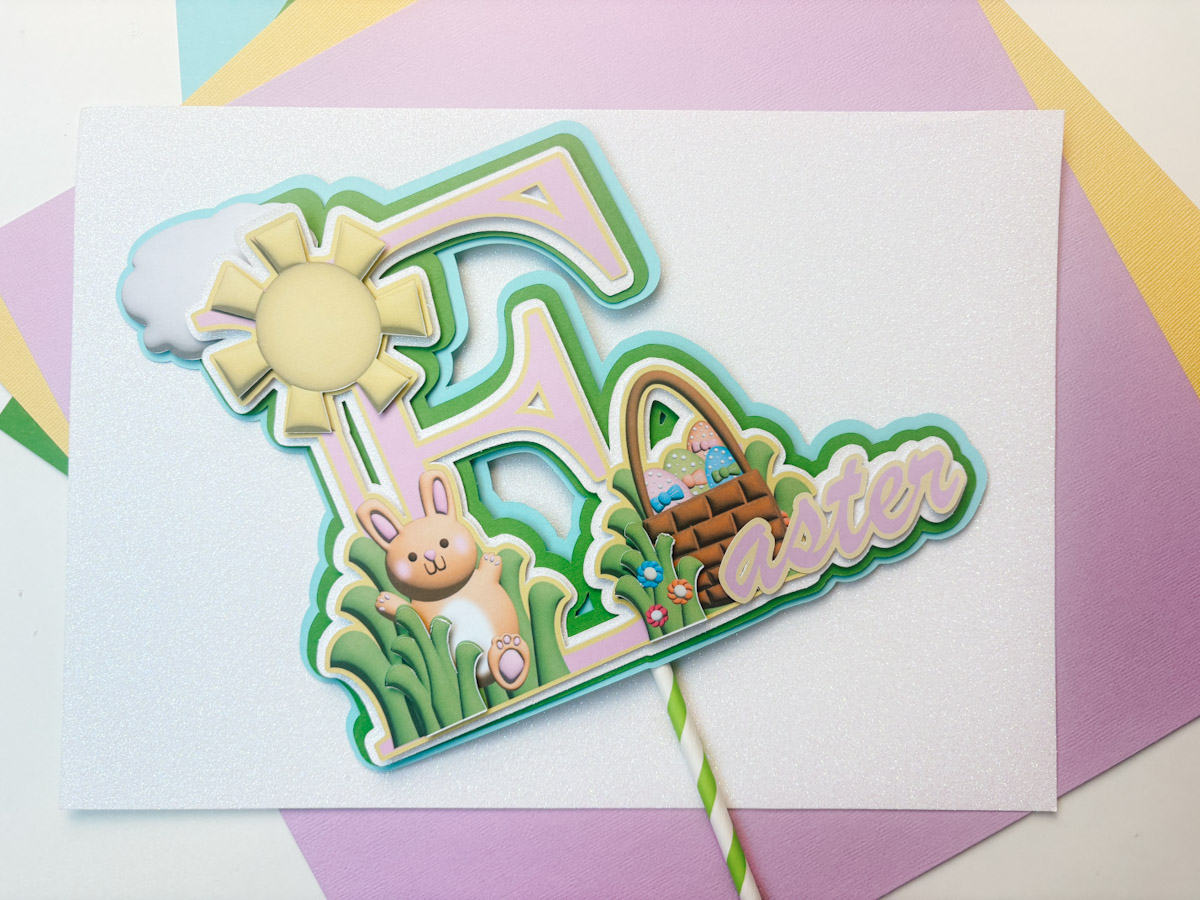
Step 1: Gather Your Resources
- Download the alphabet from the website, see above.
- Upload the chosen letter (e.g., “E”) to Cricut Design Space.
- Optional: Upload the sun and cloud and bunny elements, available in the shop for a small fee.
Step 2: Sizing and Placement
- Adjust the size of the sun so that it fits neatly over your chosen letter.
- The cloud will be added later for additional layering.
- Type “Easter” using a handwritten curly font from the system.
Step 3: Preparing the Text
- Convert the text to a “Print then Cut” image.
- Use the colour panel to match the text colour with the letter.
- Create an offset to make the text chunkier and blend with the letter.
- Adjust the colour of the offset using the advanced colour settings.
- Select both elements and flatten them together.
- Position the text over the letter but do not attach it yet.
Step 4: Creating Offset Layers
- Generate an offset for the letter and text combination.
- Set the first offset layer to “Cut” and choose your desired colour (e.g., white glitter).
- Create another offset for additional layering.
- Adjust the colours as needed, refining the design as you go.
Step 5: Adding Decorative Elements
- Right-click the cloud and select “Bring to Front” to place it properly.
- Position the cloud to complement the cake topper’s design.
- Select all elements and create another offset layer.
- Adjust the colour of this offset (e.g., blue for the sky effect).
- Add further embellishments like grass, bunnies, or other Easter-themed elements from the shop.
Step 6: Printing and Cutting
- Send the design to “Print then Cut”.
- Print the design first to ensure colour matching with your chosen card stock.
- Reduce bleed in print settings and select “Best Quality” for optimal results.
- Use a green cutting mat for better adhesion and longevity.
Step 7: Assembling the Cake Topper
- Match the printed design with the coloured card stock.
- Prepare your tools: sticky pads, glue, scissors, and a straw.
- Flip the top layer and apply sticky pads to the back.
- Attach the first offset layer (e.g., white glitter).
- Continue layering with sticky pads, adding depth with each colour change.
- Attach decorative elements like grass and the bunny.
Step 8: Final Touches
- Add the sun as the final layer.
- Ensure proper placement of shadows for a 3D effect.
- Flip the topper over and attach a straw using Cosmic Shimmer Glue.
- Let the glue set for a few minutes before handling.
Congratulations! You have created a beautiful Easter Bunny cake topper.
Tips And Advice For Using Cricut
- Cricut Design Space Guide
- How to upload to Cricut Design Space
- How To Make Print And Cut Stickers In Cricut Design Space
- Where Else To Get Free SVG Files
Also please do pop over to Instagram, or TikTok and give me a follow and if you make a project please do tag me! I love seeing everyone else’s makes and chatting crafting. I could do that all day! This is also where I share all my projects in progress.


Thank you Sarah for all of the awesome SVG’s and PNG’s for your fabulous alphabets, and designs.
Thank you so much, Gail and comments like this make it all worth it, thank you and have a lovely day x