
Today, I’m sharing this out-of-this-world free SVG Surfboard Alphabet and Number Set for Cricut and Silhouette. Summer brings with it sunshine and tropical vibes, and what better way to celebrate than this beautifully crafted surfboard alphabet and number set? Creating stunning projects for cards, scrapbooking, and cake toppers has never been prettier.
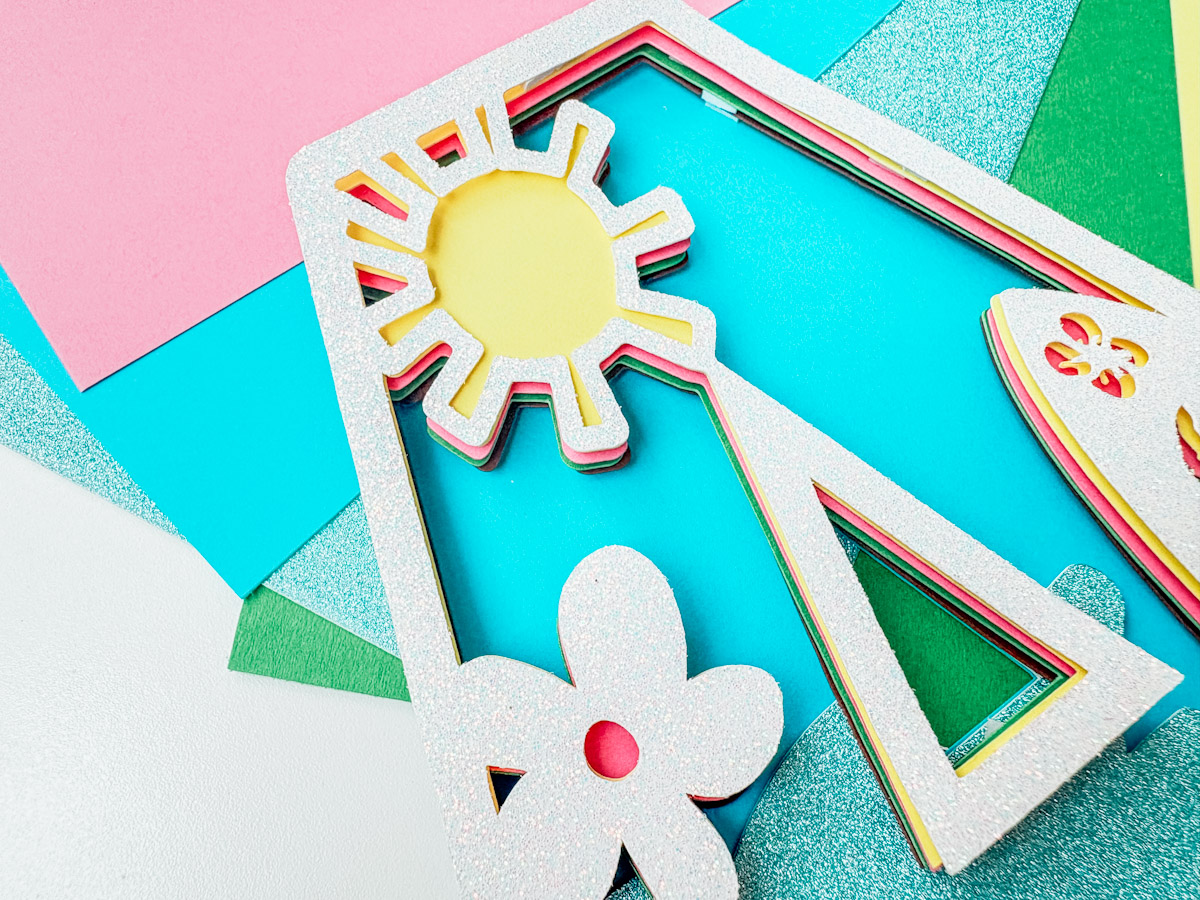
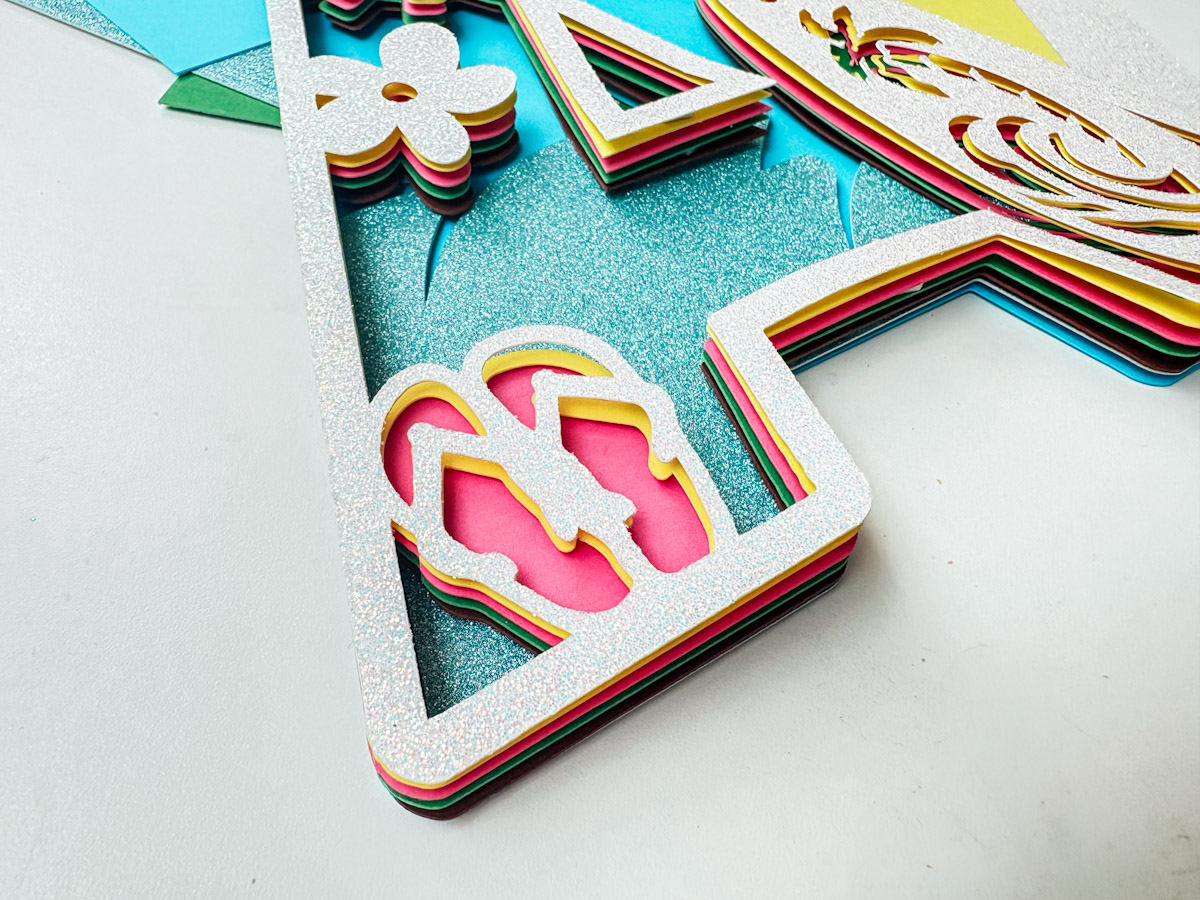
Alongside our full Hawaiian alphabet and number set, I’ll guide you through using the Contour, Slice, and Weld tools in Cricut Design Space to build colourful, layered letters that truly stand out. From glittery waves to palm trees and sunshine elements, you’ll learn how to separate and layer each part and its so easy.

This post may contain affiliate links. Which means I may receive a small commission if you click a link and purchase something that I have recommended at no extra cost to yourself. As an amazon, Cricut and Glowforge associate, I earn from qualifying purchases.
What You Will Find Here
Craft Ideas For Our SVG Surfboard Alphabet Letters & Number Set For Cricut And Glowforge
- Surf Cake Toppers
- Framed Art For Kiddies Bedrooms
- Scrapbooking Layouts
- Cards
- Birthday Invitations and Party Decor
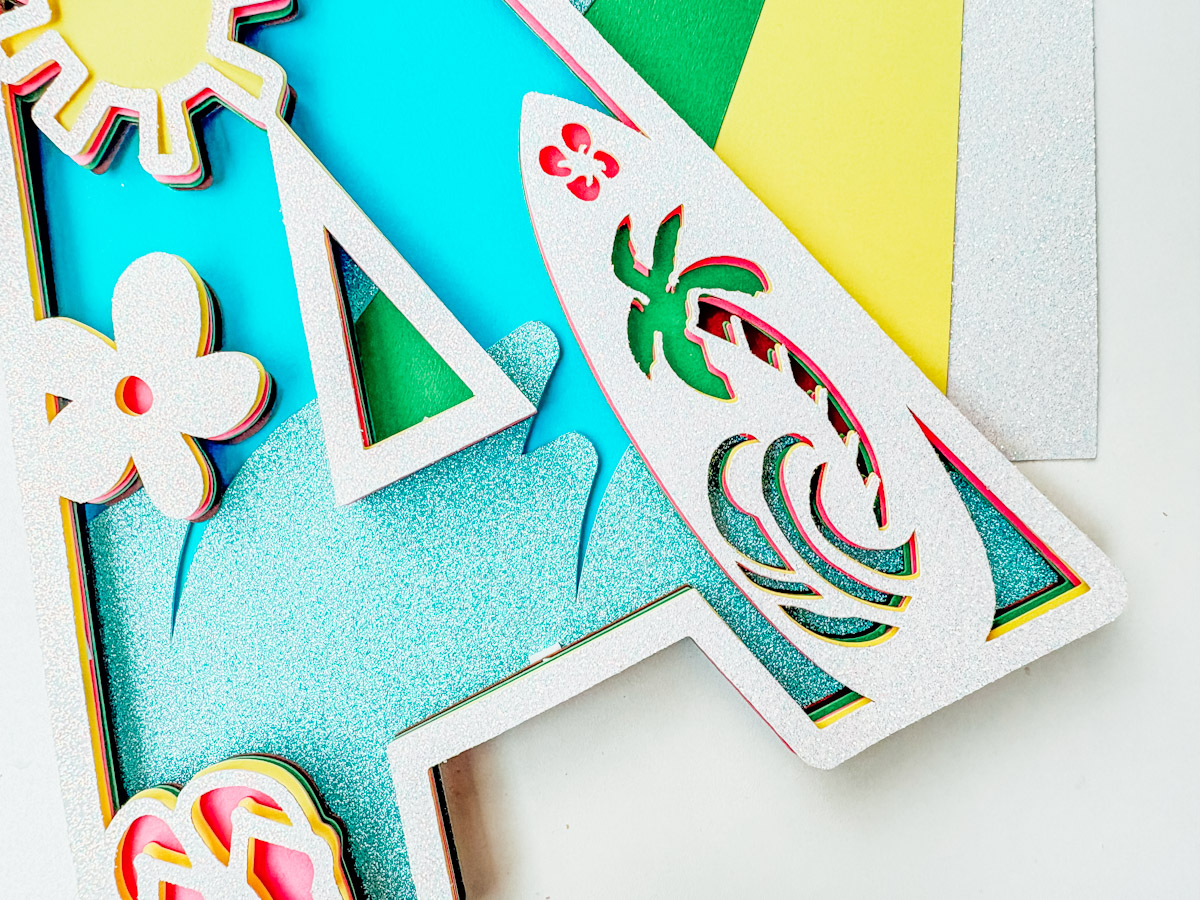
How to Make a Layered Hawaiian Alphabet Letter in Cricut Design Space
You Will Need
- Cricut machine (Joy, Explore, or Maker)
- Cricut Design Space (free software)
- Standard Gripmat (green)
- Cardstock in your chosen colours
- Weeding tool
- Brayer
1: Upload Your Letter
- Open Cricut Design Space
- Upload the Hawaiian letter file of your choice
- Place it onto your canvas, if it is SVG, weld the letter
2: Create the Top Layer
- Duplicate your uploaded letter
- Set the top duplicate to white, this will be your glittery top layer (or any colour you prefer)
3: Use Contour to Create a Sunshine Layer
- Select the bottom duplicate
- Click the Contour tool (bottom-right corner)
- Remove the sun
- Duplicate this sun layer and send it to the back
- Change its colour to yellow
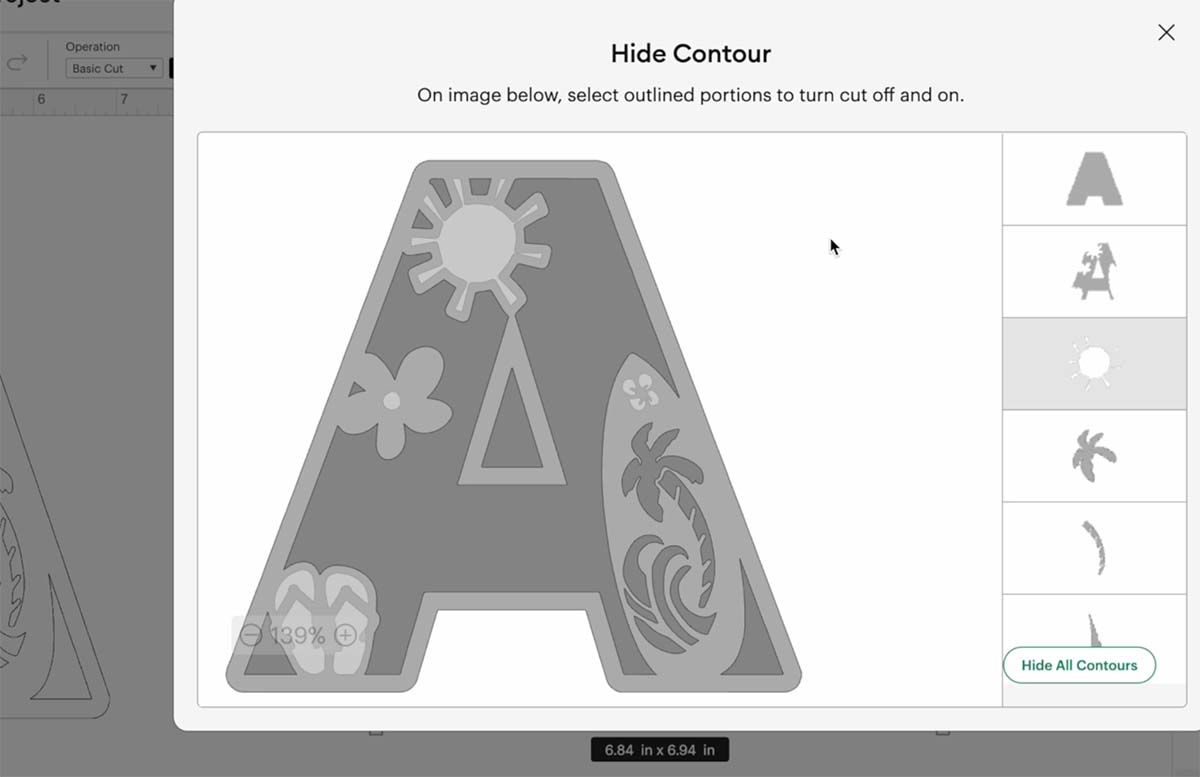
4: Create a Flower and Flip-Flops Layer
- Go to the last duplicate layer
- Use Contour again
- This time, remove flip-flops and flowers
- Duplicate and send to the back
- Change the colour to pink
5: Create the Tree Canopy Layer
- Go to the last duplicate
- Use Contour to remove the top of the palm tree
- Duplicate and send to the back
- Change the colour to green
6: Create the Tree Trunk Layer
- Duplicate your tree canopy layer
- Use Contour to remove the trunk
- Change the trunk layer to brown and send it behind the canopy
7: Create the Sky Background Layer
- Duplicate the last layer
- Use Contour to remove everything except the inside open areas of any letters, ie A, O or D
- Change the colour to blue for the sky
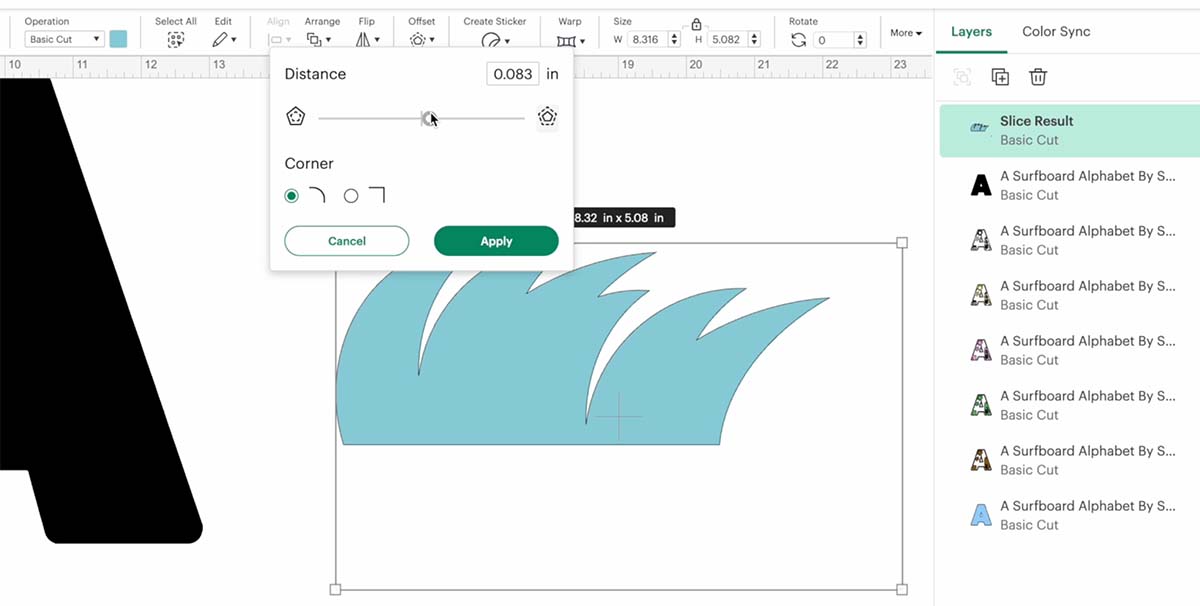
8: Make the Wave Pattern
- Insert a circle shape
- Duplicate and overlap it slightly with the original circle
- Slice one out of the other to make a wave-like crescent shape
- Arrange and weld several wave shapes together
- Use a square, unlocked and rotated, to trim the bottom edge for a straight wave base
- Apply a small offset to round off any sharp corners
- Remove any small dots or errors using Contour
- Slice your wave pattern into the base layer to integrate it with the letter
- Weld it all together
9: Prepare for Cutting
- Double-check all layers are in the correct order
- Each coloured element should be clearly visible and not overlapping incorrectly
- Send your layered design to cut
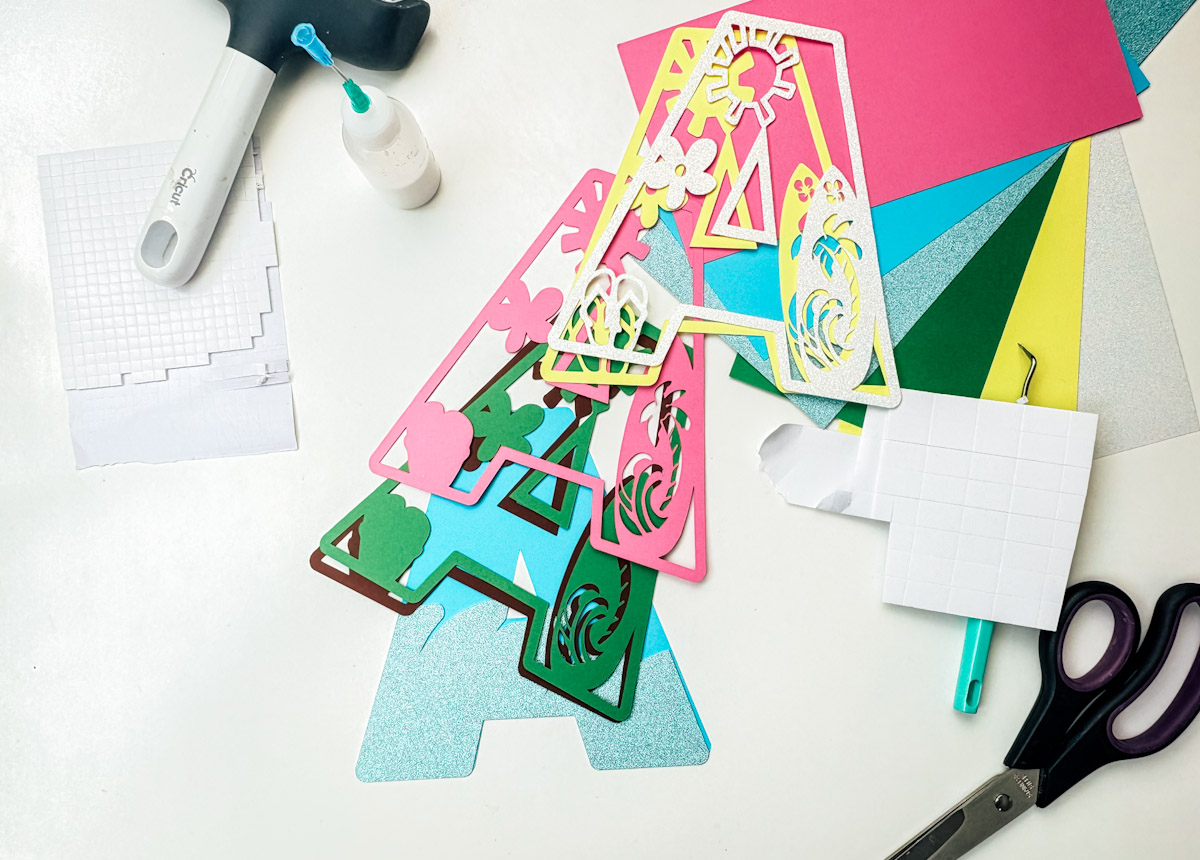
10: Assemble the Layers
- Once cut, lay out all pieces
- Use sticky pads to add depth between layers:
- Use large pads for big areas
- Cut smaller pads for tiny details using a weeding hook
- Carefully line up each layer – take your time to get the positioning right
- Add each element in order to complete your design
How To Get Your Surfboard Alphabet Letters And Numbers
Click here or the image below to get your free downloadable Surfboard SVG Alphabet from our shop and follow these instructions to add to Cricut Design Space if you are using a Cricut Machine. Note if you are using Glowforge you need SVG files to cut the image out of wood or acrylic. Or Png or SVG to engrave.

If You’re Having Problems?
Check out my trouble shooting page, hopefully it will answer any questions you may have.
Tips And Advice For Using Your Download For Cricut
This alphabet is also perfect to make cards and cake toppers with your Cricut, check out my guides below.
- How To Add Fonts To Cricut Design Space
- How To Remove Backgrounds On Illustrator
- Cricut Design Space Guide
- How To Slice And Weld In Cricut Design Space
- How to upload to Cricut Design Space
- Using Iron On Vinyl
- Where Else To Get Free SVG Files
Also please do pop over to TikTok or Instagram, and give me a follow and if you make a project tag me! I love seeing everyone else’s makes and chatting crafting. I could do that all day! This is also where I share videos of my makes.

