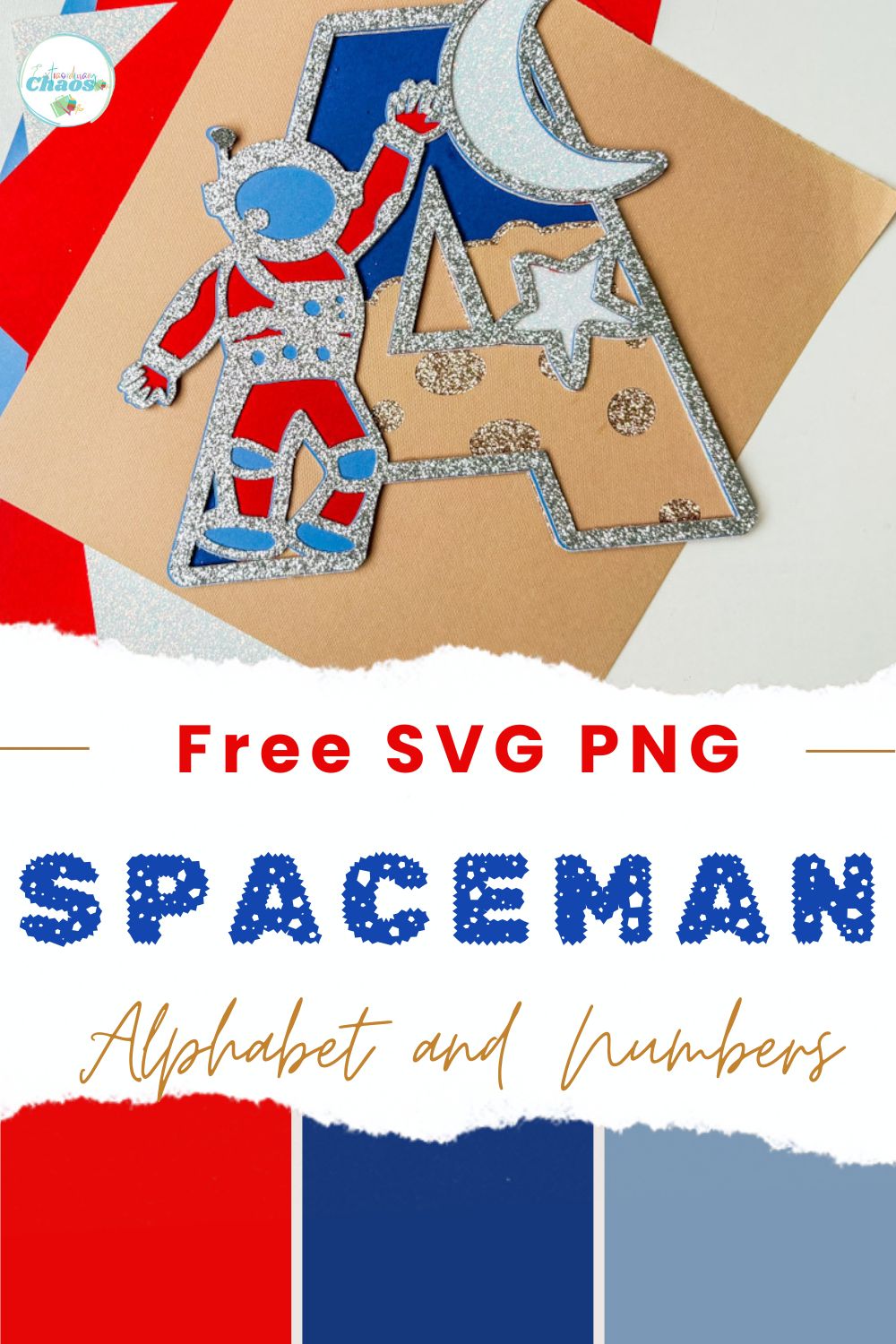
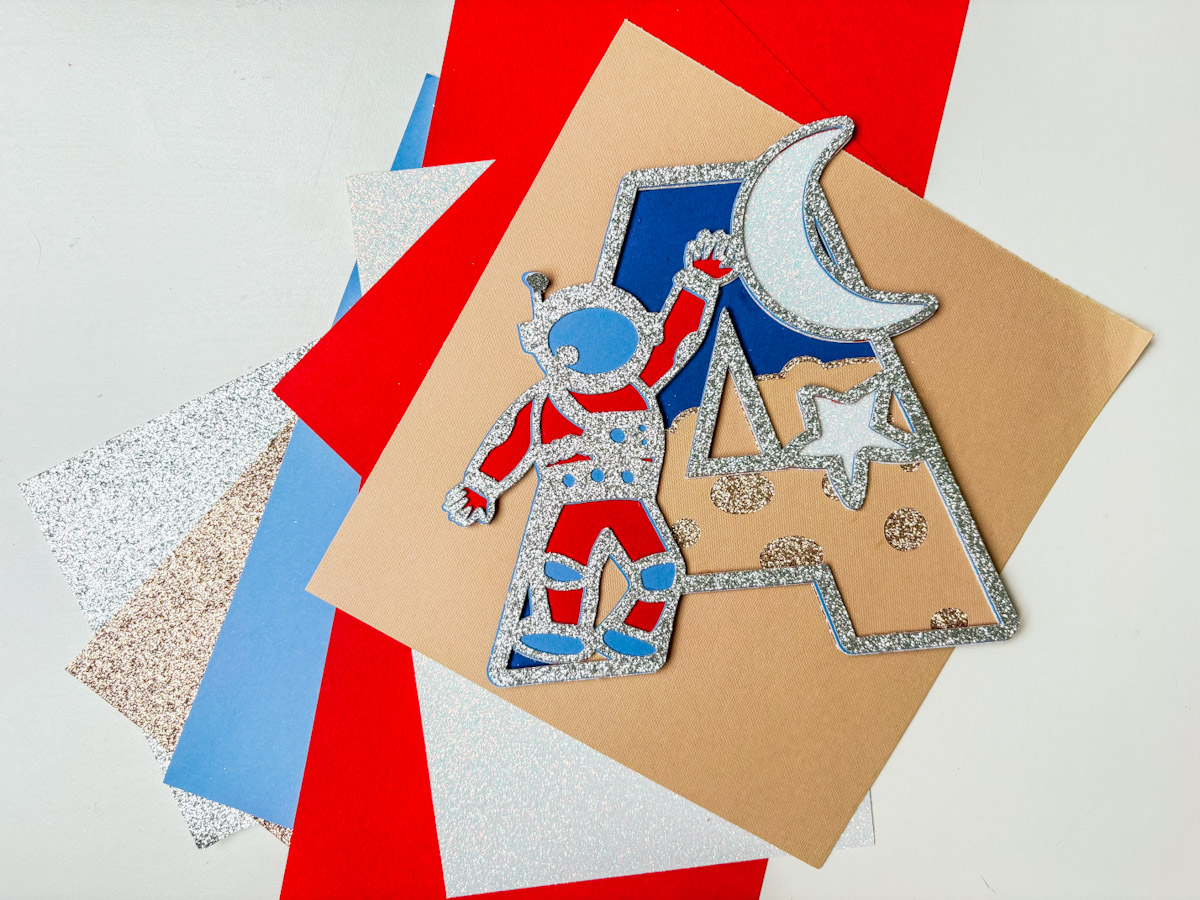
Today, I’m sharing a super cool free SVG Spaceman Alphabet and Number Set designed especially for Cricut and Silhouette users. And I am providing you with the top layer and a step by step tutorial to create you own layered files.
Whether you’re crafting cards, scrapbooking for space fans, or making cute cake toppers, these spaceman letters and numbers will take your projects to the next level.
Alongside our full Spaceman alphabet and number set, I’ll guide you through using the Contour, Slice, and Weld tools in Cricut Design Space to build colourful, layered letters that truly stand out.
This post may contain affiliate links. Which means I may receive a small commission if you click a link and purchase something that I have recommended at no extra cost to yourself. As an amazon, Cricut and Glowforge associate, I earn from qualifying purchases.
What You Will Find Here
Craft Ideas For Our SVG Spaceman Alphabet Letters & Number Set For Cricut And Glowforge
- Spaceman Cake Toppers
- Framed Art For Kiddies Bedrooms
- Scrapbooking Layouts
- Cards
- Birthday Invitations and Party Decor
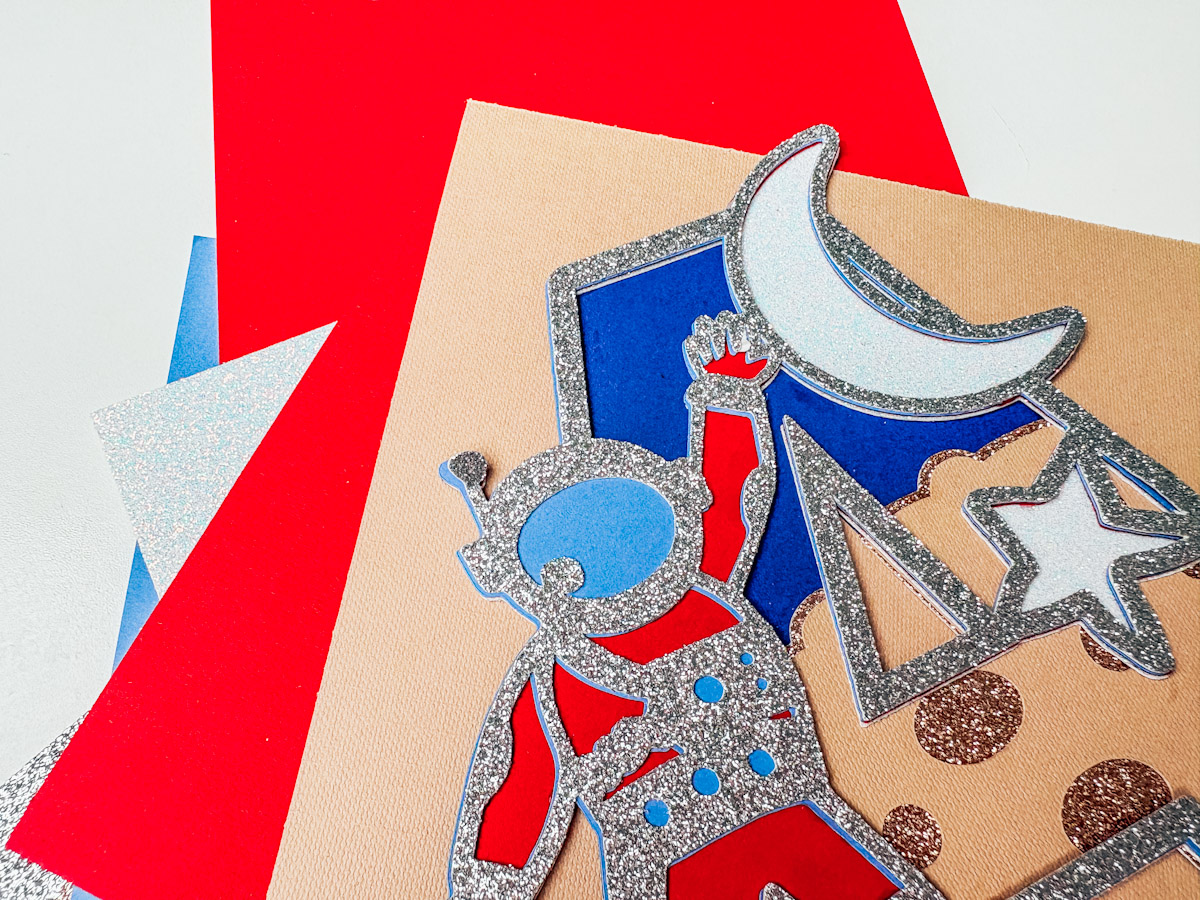
Step-by-Step Tutorial To Make This Layered Spaceman Alphabet
You Will Need
- Cricut machine (Joy, Explore, or Maker)
- Cricut Design Space (free software)
- Standard Gripmat (green)
- Cardstock in your chosen colours
- Weeding tool (for removing small bits)
- Brayer (optional, to smooth cardstock on mat)
- Cosmic Shimmer Glue
Upload Your Spaceman Letter or Number
- Open Cricut Design Space and upload your layered spaceman letter or number SVG.
- Resize to your desired size for your card or cake topper.
Create Your Layers
- Duplicate your top layer twice.
- Colour the top layer silver.
- Select the second layer, click Contour, and remove details inside the helmet, buttons, and knees. Colour this pale blue for reflection.
- Duplicate again, contour to remove the remaining controls and details, making it solid. Colour this red for a layered pop.
Add the Moon and Stars Layer
- Duplicate your moon and stars layer, move it behind the spaceman, and colour it white glitter to represent stars.
Create the Planet Layer
- Add a circle, resize it to cover the bottom third behind your spaceman.
- Duplicate smaller circles and ovals, arranging them around the edge of the circle to create bumpy, crater-like edges.
- Select all circles + the base circle, weld together to create your planet shape.
- Duplicate and apply an offset layer to add depth, keeping the offset only at the top, slicing away excess to avoid overlaps. Colour this navy blue.
Add Craters to Your Planet
- Duplicate and resize small circles, placing them randomly across the top of the planet shape.
- Select all circles + the planet shape, weld them, and slice to create crater cut-outs.
Slice Layers for Final Assembly
- Position your layered planet behind your spaceman letter/number and align.
- Use Slice to remove the planet area from the bottom of your spaceman, ensuring the planet shows clearly behind.
Cut Your Layers
- Set your Cricut to cut on glitter cardstock with “More” pressure for crisp edges.
- Load onto your green sticky mat for best results.
- Cut each layer by colour.
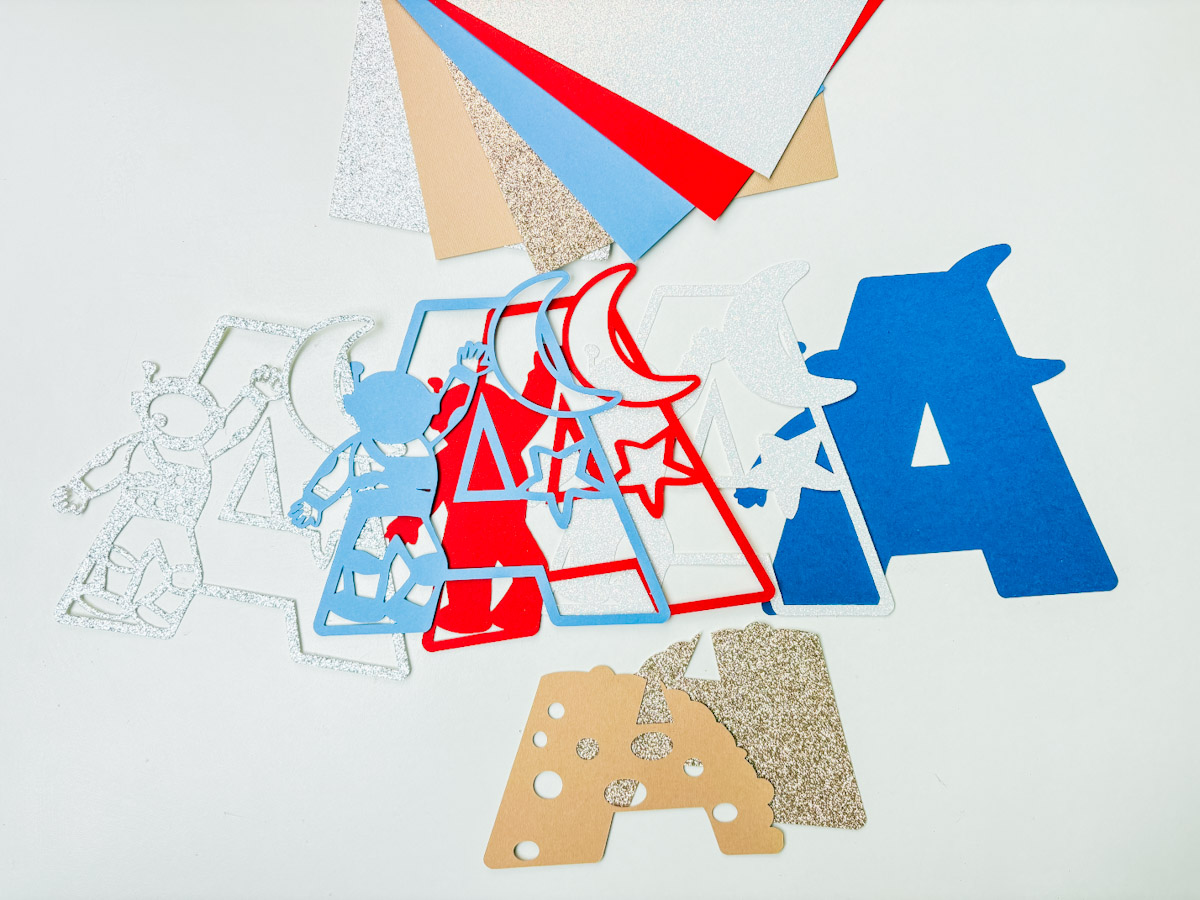
Weed and Prepare Layers
- Use the reverse weeding method: flip the mat and peel it back gently to keep your layers flat.
- Weed out small details carefully.
Assemble Your Layers
- Start from the back and work forward.
- Use Cosmic Shimmer glue for a precise application, applying a thin line around edges to prevent oozing.
- Use a brayer or gently press each layer down to secure.

Tips:
- Use foam pads between layers for added dimension.
- Try metallic, mirror, or holographic cardstock for added space vibes.
- Batch cut and assemble for multiple party bags or table decorations efficiently.
How To Get Your Spaceman Alphabet Letters And Numbers
Click here or the image below to get your free downloadable Spaceman SVG Alphabet from our shop and follow these instructions to add to Cricut Design Space if you are using a Cricut Machine.

If You’re Having Problems?
Check out my trouble shooting page, hopefully it will answer any questions you may have.
Tips And Advice For Using Your Download For Cricut
This alphabet is also perfect to make cards and cake toppers with your Cricut, check out my guides below.
- How To Add Fonts To Cricut Design Space
- How To Remove Backgrounds On Illustrator
- Cricut Design Space Guide
- How To Slice And Weld In Cricut Design Space
- How to upload to Cricut Design Space
- Where Else To Get Free SVG Files
Also please do pop over to TikTok or Instagram, and give me a follow and if you make a project tag me! I love seeing everyone else’s makes and chatting crafting. I could do that all day! This is also where I share videos of my makes.