
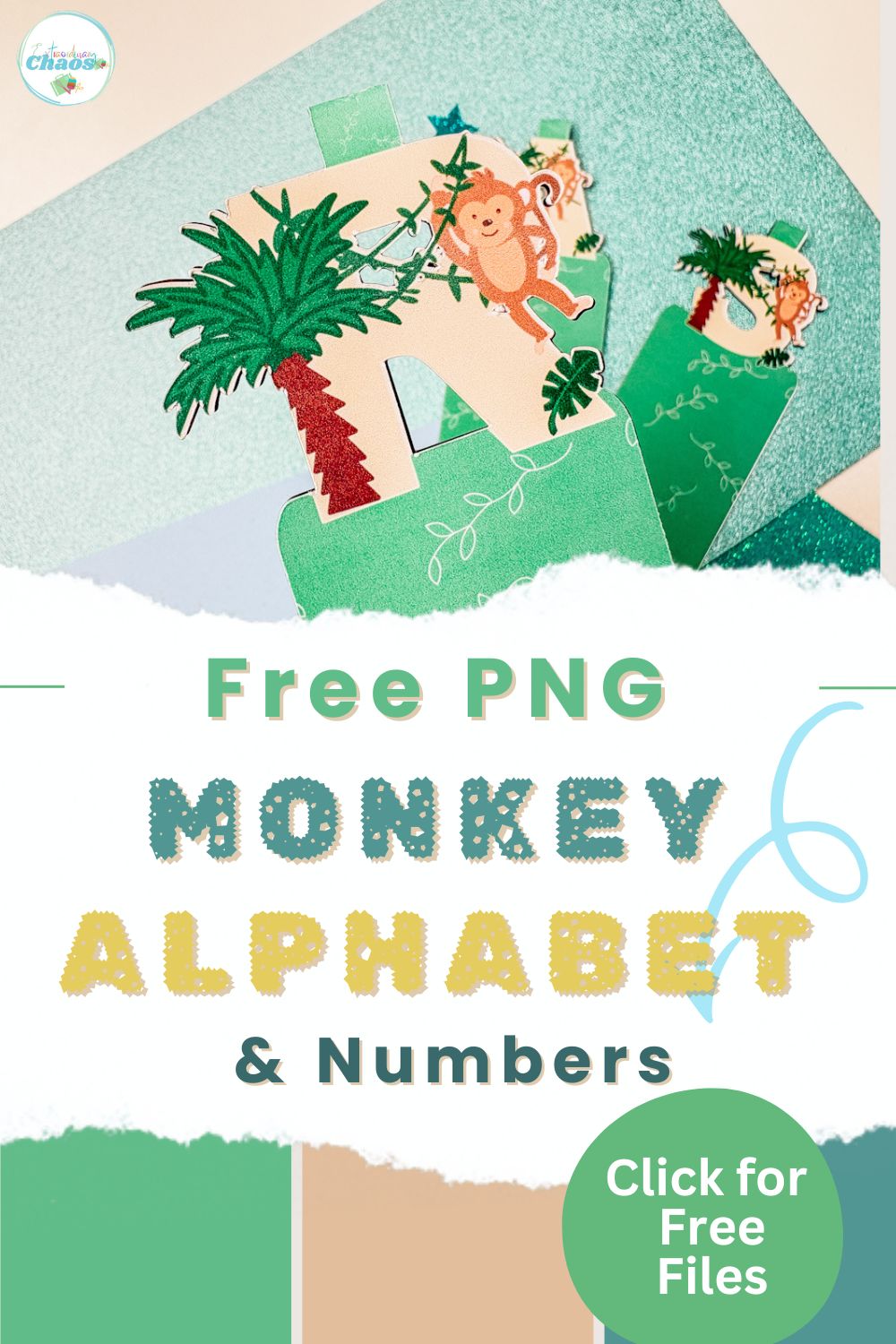
If you are looking for a fun and easy Cricut project that also comes with a free printable alphabet and number set, you are going to love this idea. In this tutorial, I will show you how to create printable magnetic bookmarks using Cricut, perfect for beginners who want to learn Print Then Cut while making something practical and personalised.
The best part about this project is the free alphabet download. You can create custom bookmarks for kids, gifts, classrooms, or even party favours using letters and numbers that are ready to upload straight into Cricut Design Space. Whether you want initials, names, or themed designs, this free set makes it easy to get started without designing anything from scratch.
These Cricut magnetic bookmarks are double-sided, easy to make, and work beautifully with printable magnetic cardstock. They are ideal for encouraging children to read, adding a personal touch to books, or creating thoughtful, handmade gifts that people will actually use.
If you are new to Cricut or looking for beginner-friendly Cricut projects with free downloads, this step-by-step guide will walk you through everything you need to know, from uploading your alphabet to cutting and assembling your finished bookmarks.
This post may contain affiliate links. Which means I may receive a small commission if you click a link and purchase something that I have recommended at no extra cost to yourself. As an amazon, Cricut and Glowforge associate, I earn from qualifying purchases.
What You Will Find Here
Project Ideas For Our Free Printable Monkey Clip Art PNG Alphabet
- Personalised Nursery Decor
- Cake Toppers
- Monkey Themed Birthday Banners
- Planner Stickers
- Sublimation Mugs
- Nursery Decor
- New Baby Cards
- Monkey Scrapbooking Page Layouts
Learn How To Make These Cute Bookmarks
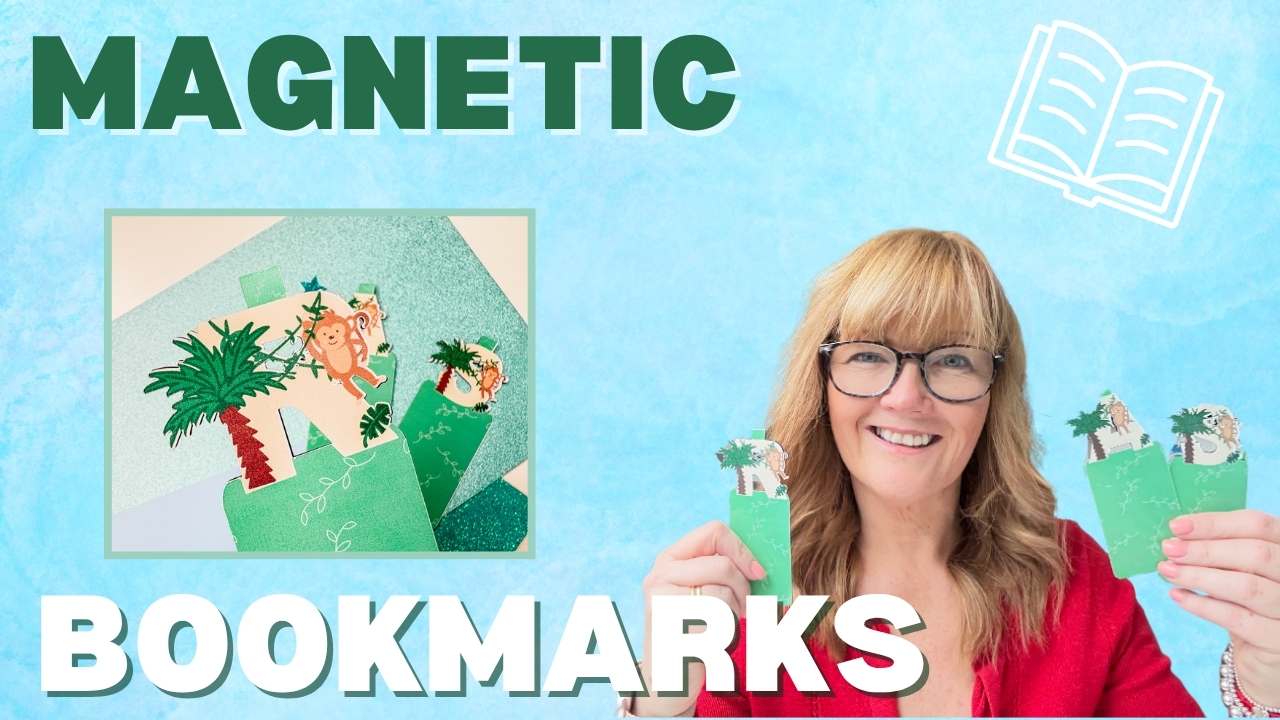
Either click on our step-by-step video below or follow the step-by-step instructions to make your own monogram personalised magnet bookmarks.
You Will Need
- Cricut machine (Explore, or Maker) https://amzn.to/3SCuf0J
- Cricut Design Space (free software)
- Standard Gripmat (green)
- Weeding tool (for removing small bits)
- Brayer (optional, to smooth cardstock on mat)
- Hp Printer
- Printable Magnetic Sheets
1. Upload Your Alphabet to Cricut Design Space
Start by opening Cricut Design Space.
- Click Upload
- Select your alphabet file from your computer
- Choose Flat Graphic when prompted
- Click Upload
Once uploaded, insert the design onto your canvas.
Resize your letters smaller as they will load quite large.
2. Choose Your Letter or Number
Select the letter you want to use and move it to the centre of your canvas.
This will be the main design for your bookmark.
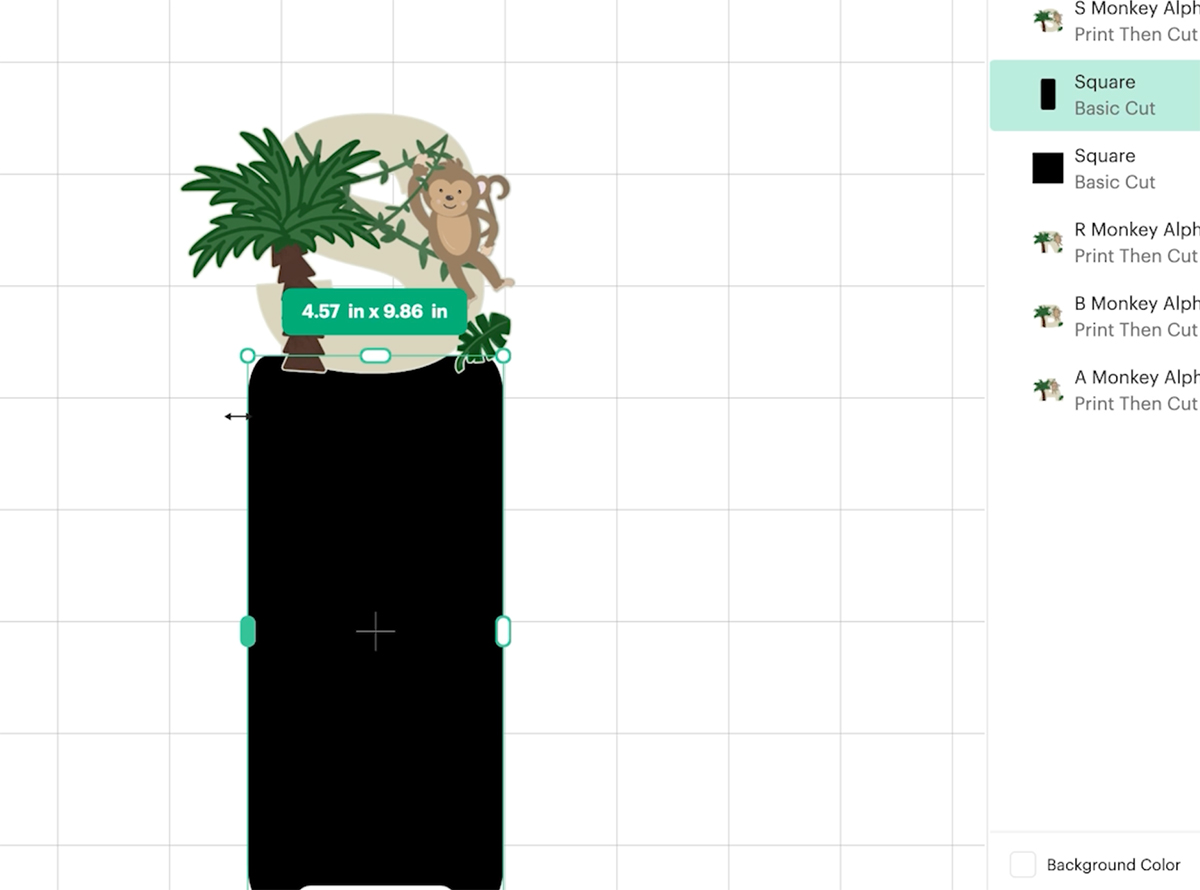
3. Create the Bookmark Shape
Now you need to create the base shape.
- Go to Shapes
- Select a square
- Unlock the shape using the padlock icon
- Stretch it into a rounded rectangle
Resize it to suit your bookmark size and position it behind your letter.
Make sure the top of the letter slightly overlaps the shape.
4. Add a Pattern Fill
To make your bookmark more decorative:
- Select the rectangle
- Change it from Basic Cut to Print Then Cut
- Click on the colour box
- Choose Pattern
- Select your chosen pattern
You can adjust the scale of the pattern to remove any tiling effect.
5. Create the Foldover Tab
To make your bookmark fold over pages:
- Duplicate your rectangle
- Resize it smaller
- Place it at the top of your bookmark
This will act as the tab that folds over the book page.
Once positioned, select all layers and click Flatten.
6. Duplicate for Double-Sided Design
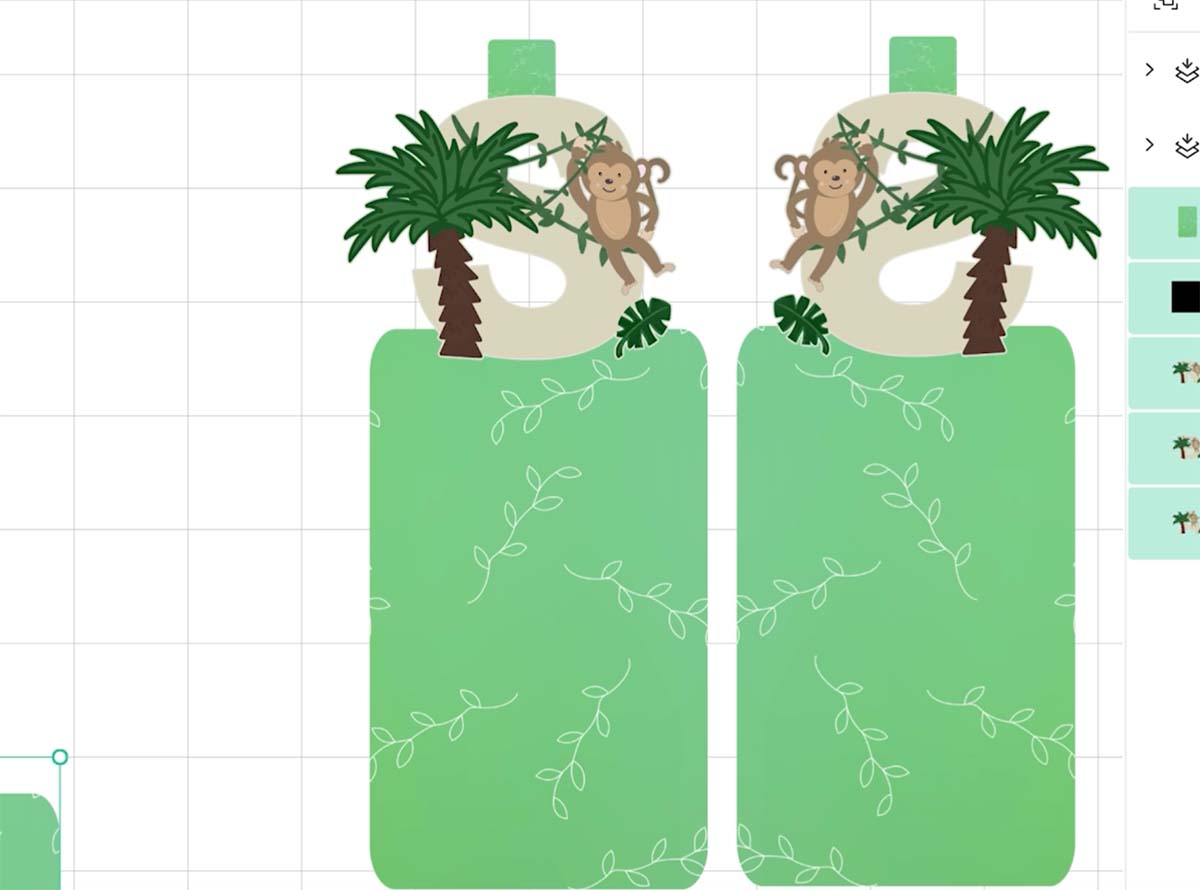
To make your bookmark double sided:
- Duplicate your flattened design
- Place the copy next to the original
- Flip one of the designs horizontally
This ensures both sides line up correctly when folded.
Select both pieces and resize them together so they remain identical.
7. Add More Letters (Optional)
If you want multiple bookmarks:
- Duplicate your design
- Click Unflatten
- Remove the original letter
- Insert a new letter
- Resize and position it
- Flatten again
Repeat this for as many bookmarks as you want to create.
8. Prepare for Print Then Cut
Arrange your bookmarks so they fit on your page.
Select all and click Make It.
In the print settings:
- Turn on Use System Dialog
- Set print quality to Best
This ensures your colours come out bright and clear.
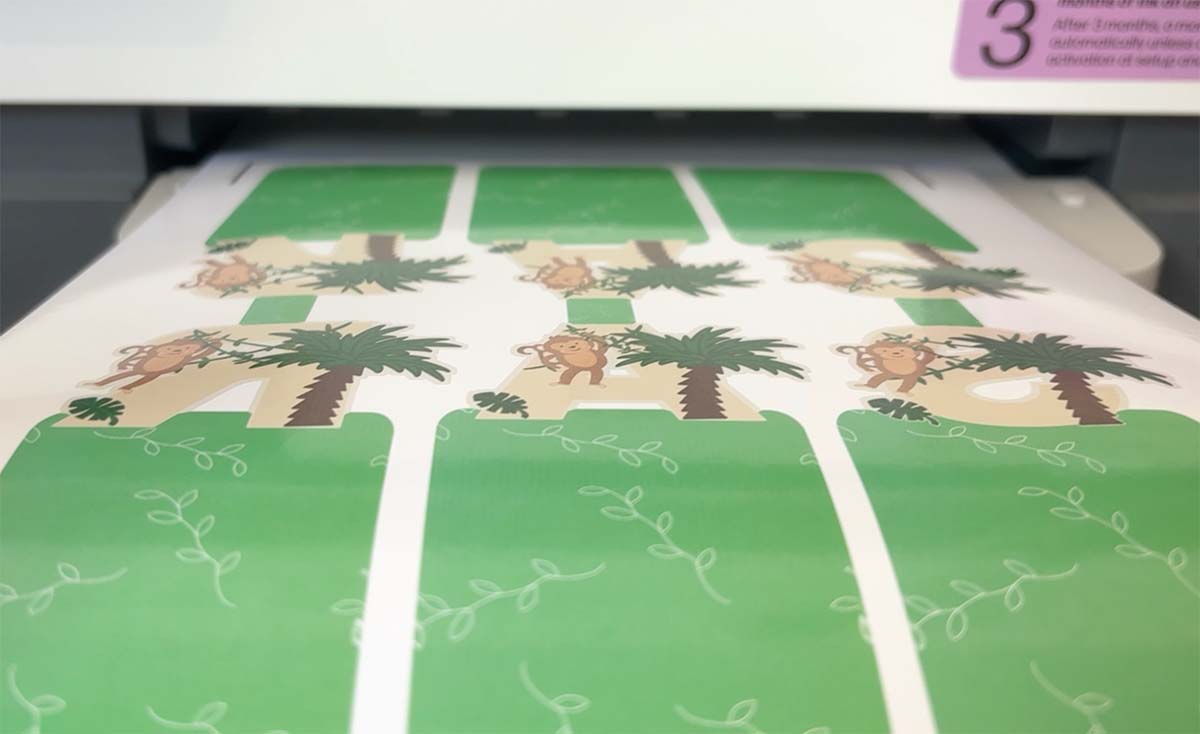
9: Print on Magnetic Cardstock
Load your printable magnetic sheet into your printer and print your design.
Make sure your design prints correctly before moving on to cutting.
10: Cut Your Bookmarks
Place the printed sheet onto your Cricut mat in the correct orientation.
In Cricut settings:
- Select Printable Magnetic Paper
- Choose More pressure
Load your mat and start cutting.
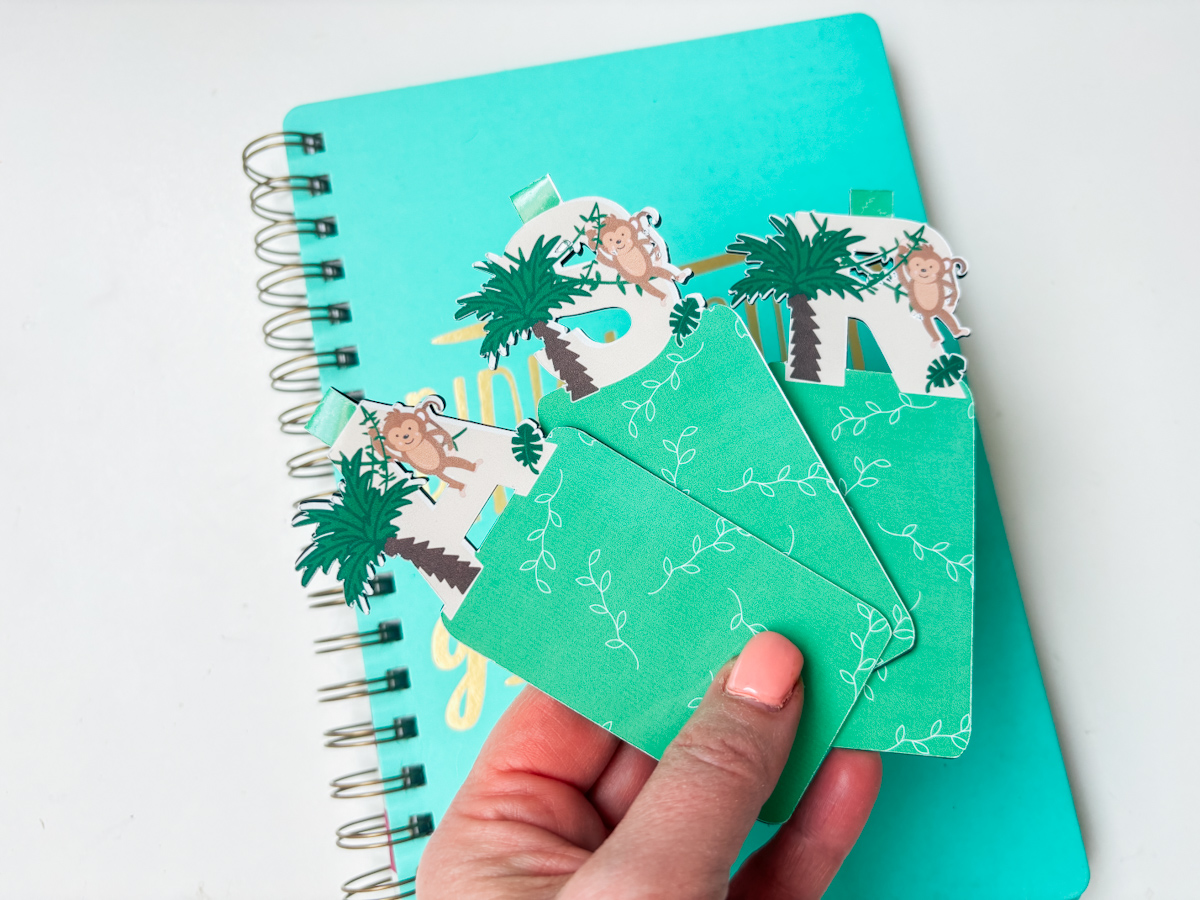
11: Assemble Your Bookmark
Once cut:
- Carefully remove each bookmark from the mat
- Fold along the tab
- Align the front and back
The magnet will hold both sides together over your page.
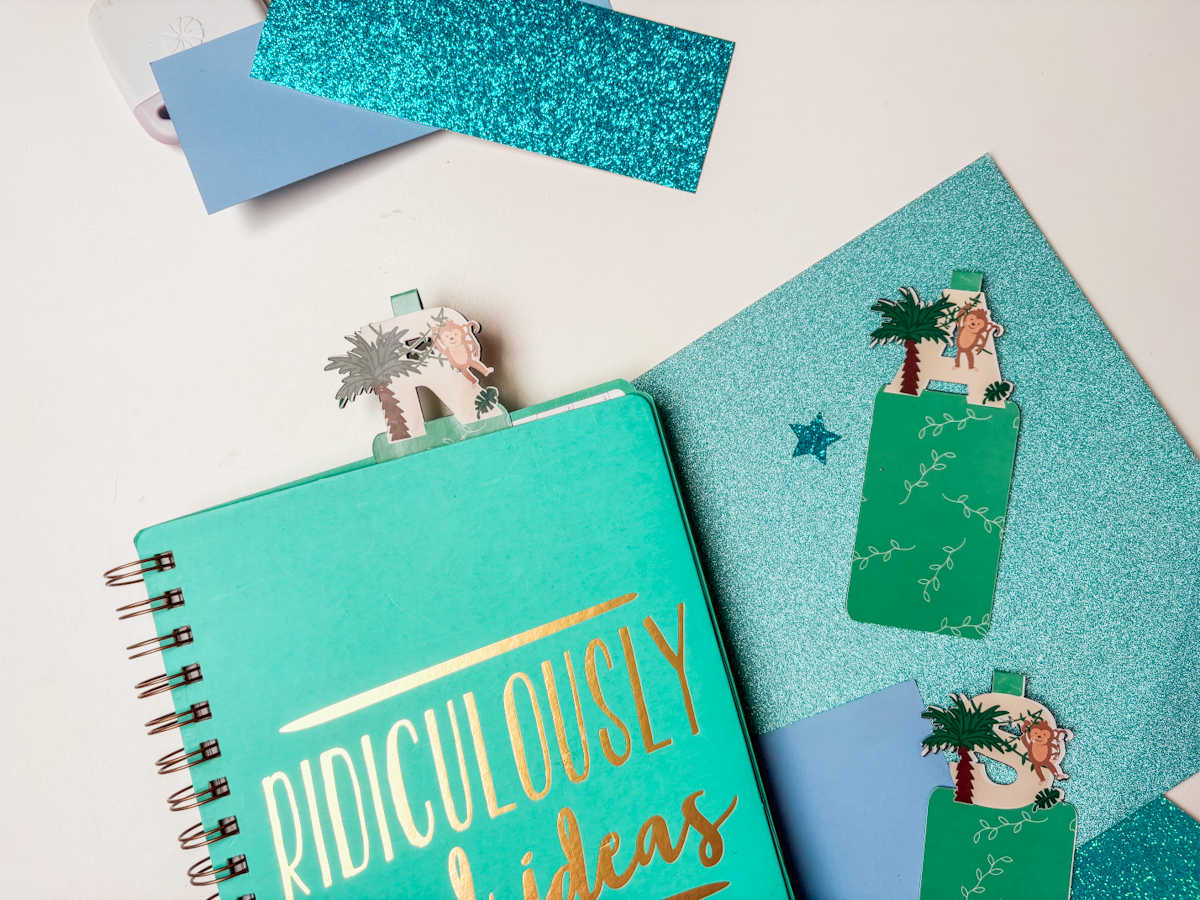
12: Use and Enjoy
Slide your bookmark over a page so the tab sits at the top.
You can position it higher or lower depending on your preference.
These bookmarks are perfect for:
- Encouraging children to read
- Personalised gifts
- Party favours
- Classroom rewards
Top Tips for Cricut Beginners
- Always resize both sides together to keep alignment perfect
- Flip one side before cutting to ensure correct orientation
- Use high quality print settings for the best results
- Test your cut settings if using a new material
How To Upload and Print Your Printable Monkey Clip Art Alphabet Letters And Numbers To Cricut Design Space.
Follow this step-by-step guide to upload images and SVG and PNG files to Cricut Design Space. Once uploaded, click Make it; if you need help with this, follow our step-by-step print and cut guide.
If You Don’t Have Cricut ?
You can upload our Monkey Alphabet to Canva, a great program for making posters and cards, or to Word or Pages. Just arrange your letters or numbers with spaces between them and cut them with a guillotine.
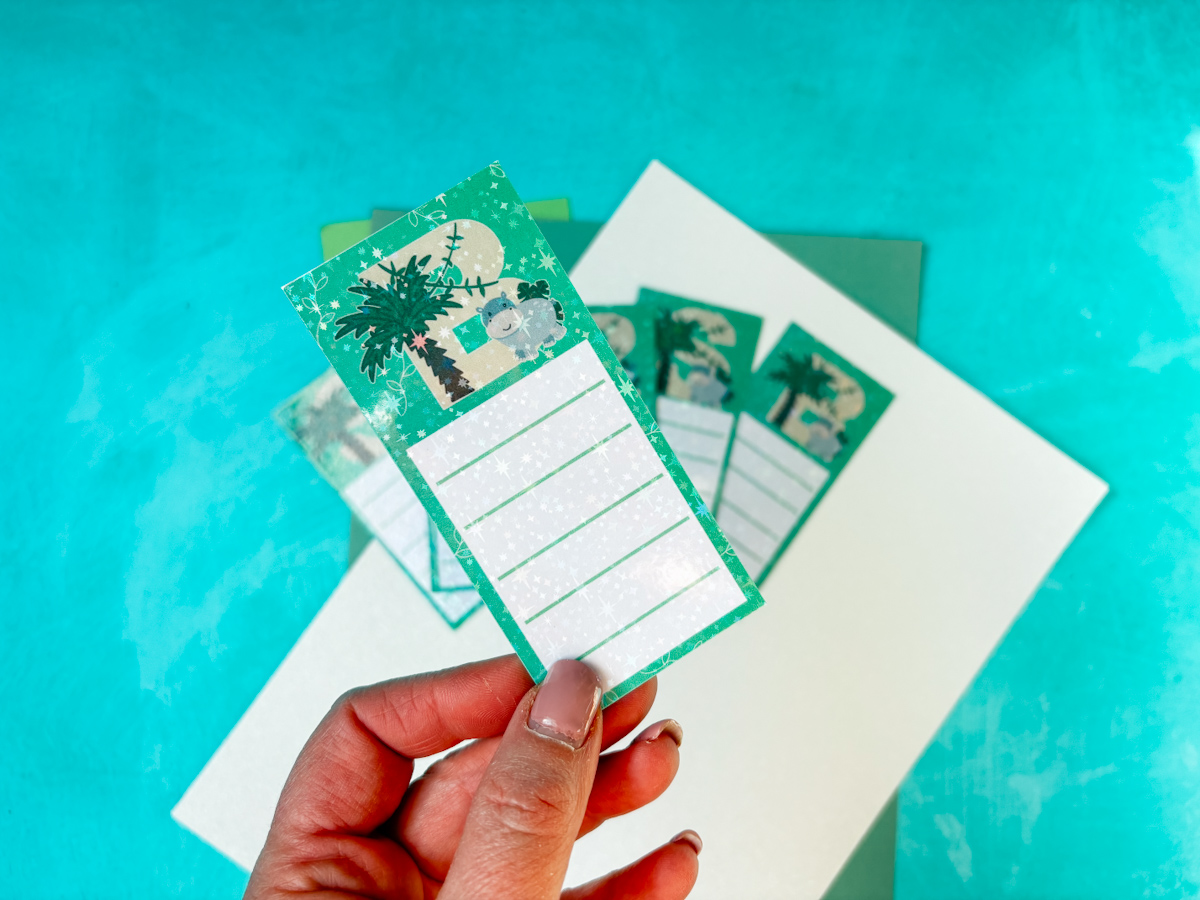
Also Get Our Other Jungle Alphabets
Click on the images to get more of our cute jungle alphabets.



If You Want To Use These Free Printable Monkey PNG Alphabet Letters And Numbers Template?
Click here or on the image below to get your free download of our Printable Monkey PNG cut files. They are instant downloads from our shop. Grab the Jungle Elements,plus get our free Lion Alphabet and Number set.
If You’re Having Problems?
Check out my troubleshooting page, hopefully it will answer any questions you may have.
Tips And Advice For Using Cricut
- Cricut Design Space Guide
- How to upload to Cricut Design Space
- How To Make Print And Cut Stickers In Cricut Design Space
- Where Else To Get Free SVG Files
Also please do pop over to Instagram, or TikTok and give me a follow and if you make a project please do tag me! I love seeing everyone else’s makes and chatting crafting. I could do that all day! This is also where I share all my projects in progress.
