
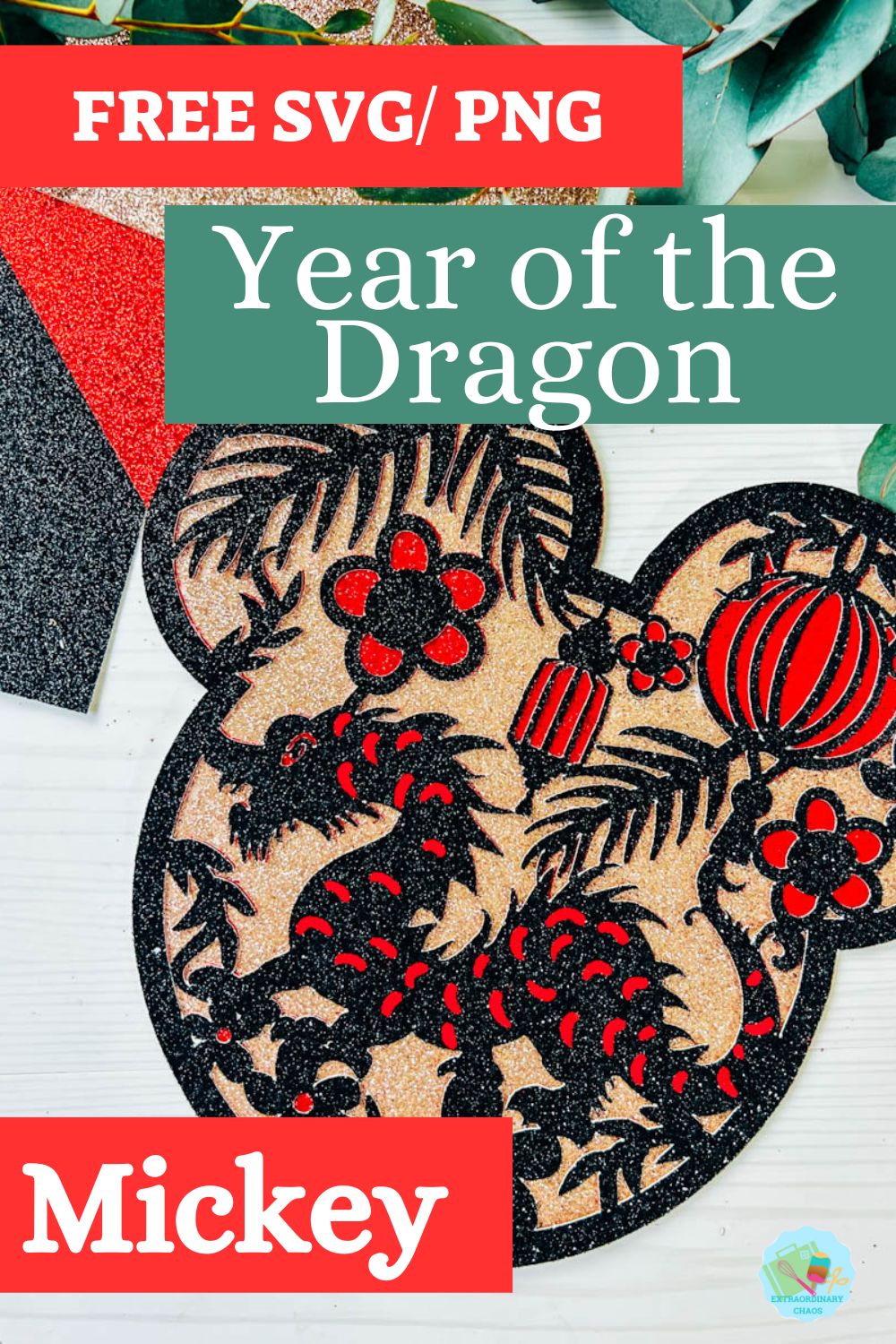
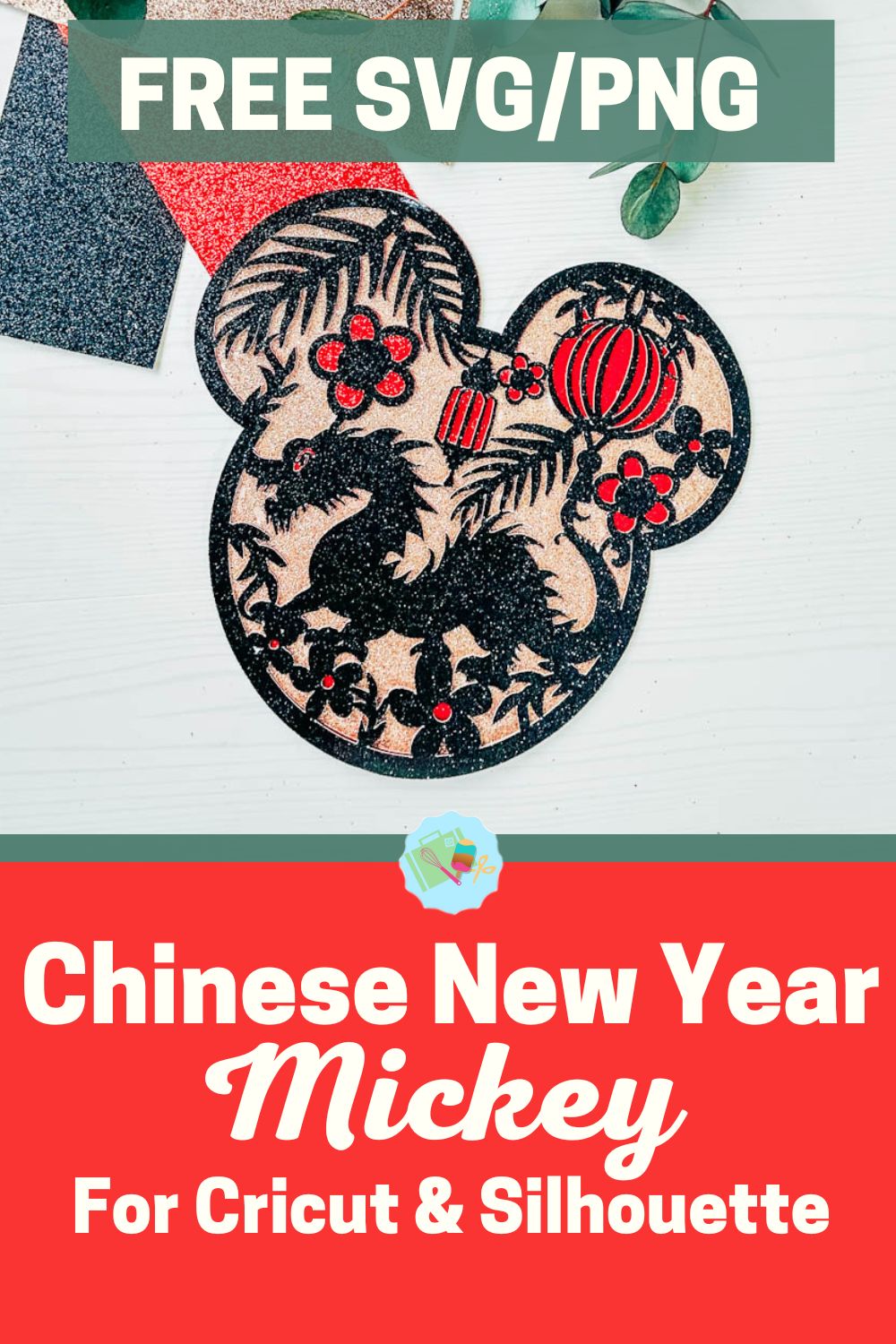
Today, we are sharing this oh-so-adorable Free Layered Year Of The Dragon Mickey SVG to celebrate Chinese New Year.
The Chinese calendar is a complex calendar that rotates in a 60-year cycle. This is based on 12 earthly branches. Each represents an animal year and the five heavenly stems: earth, wood, fire, water and metal. This year, we are celebrating the Year of the Dragon, the 5th animal in the Chinese Zodiac Calendar.
Please note this is a personal use file only, it’s great for making your own Chinese New Year cards and decorations.
This post may contain affiliate links. Which means I may receive a small commission if you click a link and purchase something that I have recommended at no extra cost to yourself. As an amazon, Cricut and Glowforge associate, I earn from qualifying purchases
What You Will Find Here
What You Will Need For Our Free Layered Year Of The Dragon Mickey SVG Files
- Cricut Maker,
- Weeding Tools
- Brayer
- Clitter Card Stock in Black, Rose Gold and Red.
- Cosmic Shimmer Acrylic Clear Drying Glue.
- Red Acrylic Paint Pen.

Making Your Layered Year Of The Dragon Mickey SVG/PNG File On Cricut
Upload your Layered Year Of The Dragon Mickey SVG files to Cricut Design Space; follow these instructions if you need help. Firstly, you will need to ensure all layers line up correctly; they should; however, if they don’t, select your layer and click on the padlock on the top bar to adjust.
Once you are happy, colour all the layers of your Year Of The Dragon Mickey SVG using the pictures on this page as a guide. The Colours I used are….
- 1. Black Glitter
- 2. Red Glitter
- 3. Rose Gold Glitter
Cutting Your Year Of The Dragon Mickey SVG file SVG On Cricut
When you send your Mickey SVG/PNG files to your Cricut to cut, ensure you use your brayer to roll the paper, vinyl or card to adhere to the mat. Note that movement will affect the cut.
How To Build Your Dragon Mickey SVG Layered File
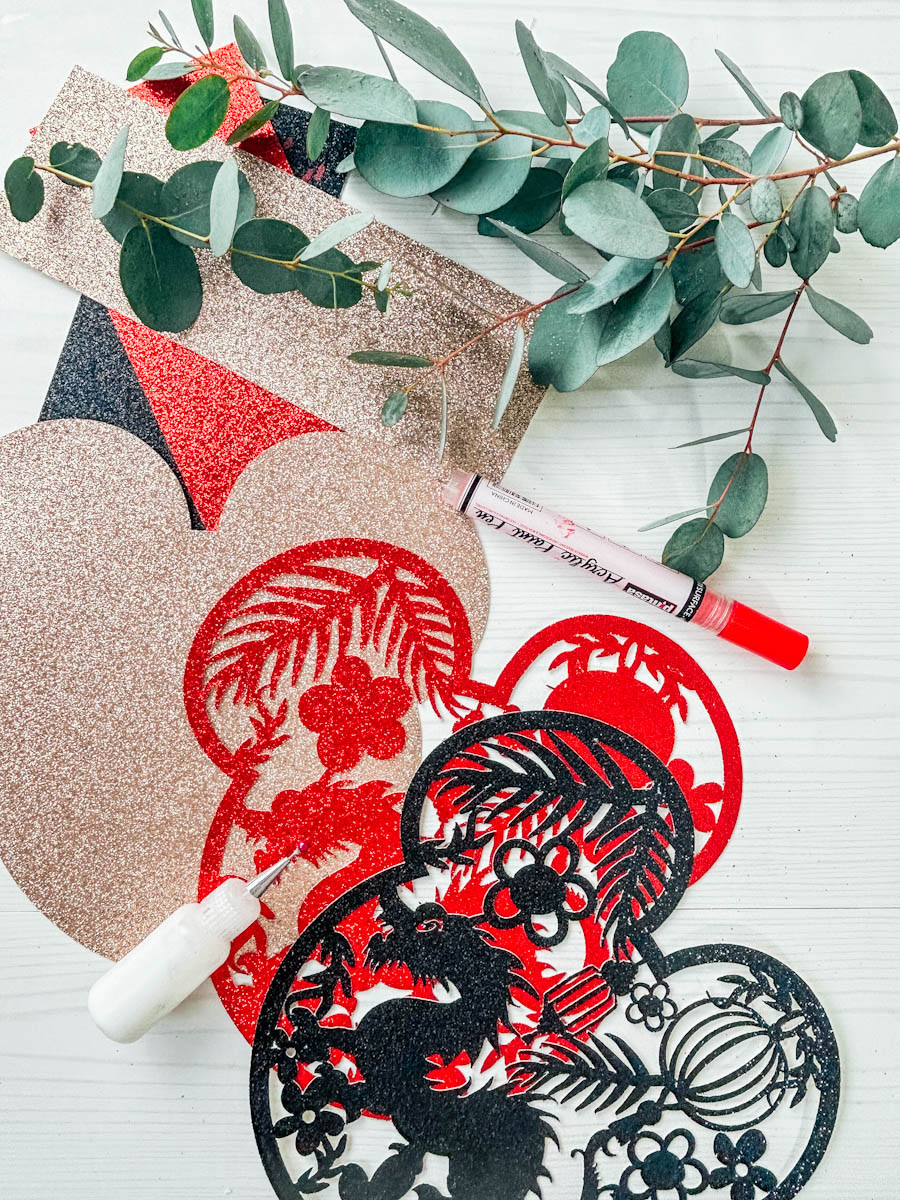
Firstly start by making sure they all line up and every Mickey layer is the correct way round, then flip all of the layers over.
Start by putting glue on the back of the second red layer and attaching to the back rose gold layer. Now add glue to the back of the black layer and attach onto the red.
Lastly, I used the red acrylic paint pens to add scales to the dragon; I added u-shaped flicks with my paint pen, trying to make it fluid to fit the dragon’s body.

How To Get Your Free Year Of The Dragon Mickey SVG/PNG Files
Click here or the the image below to get your free downloadable Year Of The Dragon Mickey SVG/png files from our members shop and follow these instructions to add to Cricut Design Space. Don’t forget to turn off any pop up blockers, and follow the instructions to sign in and download in the shop. Note if you are using Glowforge you need SVG files to cut the image out of wood or acrylic. Or Png or SVG to engrave.

If You’re Having Problems?
Check out my trouble shooting page, hopefully it will answer any questions you may have.
Tips And Advice For Using Your Download For Cricut
- Cricut Design Space Guide
- How To Slice And Weld In Cricut Design Space
- How to upload to Cricut Design Space
- Using Iron On Vinyl
- Where Else To Get Free SVG Files
- Check Out What I Thought Of The xTool M1
Also please do pop over to Instagram, or Tik Tok and give me a follow and if you make a project tag me! I love seeing everyone else’s makes and chatting crafting. I could do that all day.

Thank you so much for this! I wanted to get my daughters matching shirts for our upcoming lunar new year celebration, but just couldn’t make the price work on the cute Etsy ones. Now I can make something cute for them.