
If you want to remove backgrounds in Cricut Design Space, you don’t need Cricut Access to do it. This is one of the most common questions beginners ask, and the answer is simple: it’s a free feature, it’s just not very well signposted.
Below, I’ll walk you through exactly how to upload your own image, including a design made in Canva, and remove the background in Cricut Design Space step by step.
What You Will Find Here
How To Remove Backgrounds in Cricut Design Space for Free
Do You Need Cricut Access to Remove a Background?
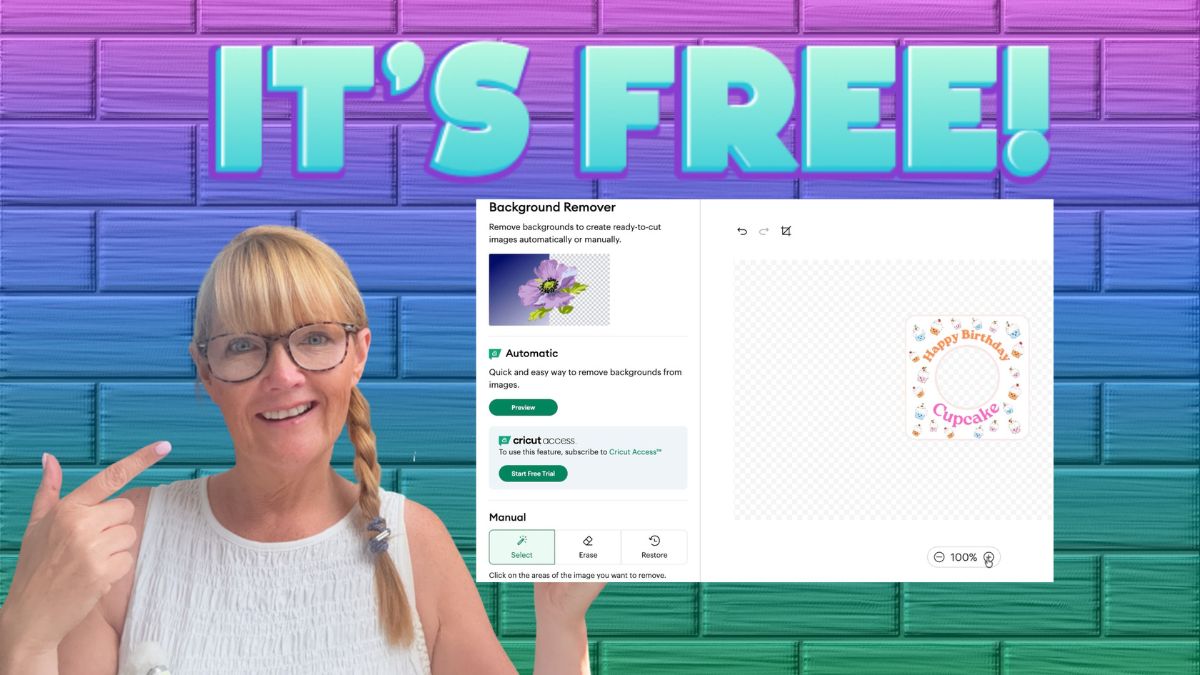
No. You do not need Cricut Access to remove background images in Cricut Design Space. Many beginners assume this feature sits behind the paid subscription, as when you look at it, it has paid access stamped all over it. But it doesn’t; look to the bottom area, and there is a free manual option. You can upload any image, whether it’s a photo or a design from Canva, and manually remove its background for free.
This works whether you’re preparing a card, a cake topper, a scrapbook embellishment, or any other cut file.

1: Prepare Your File in Canva
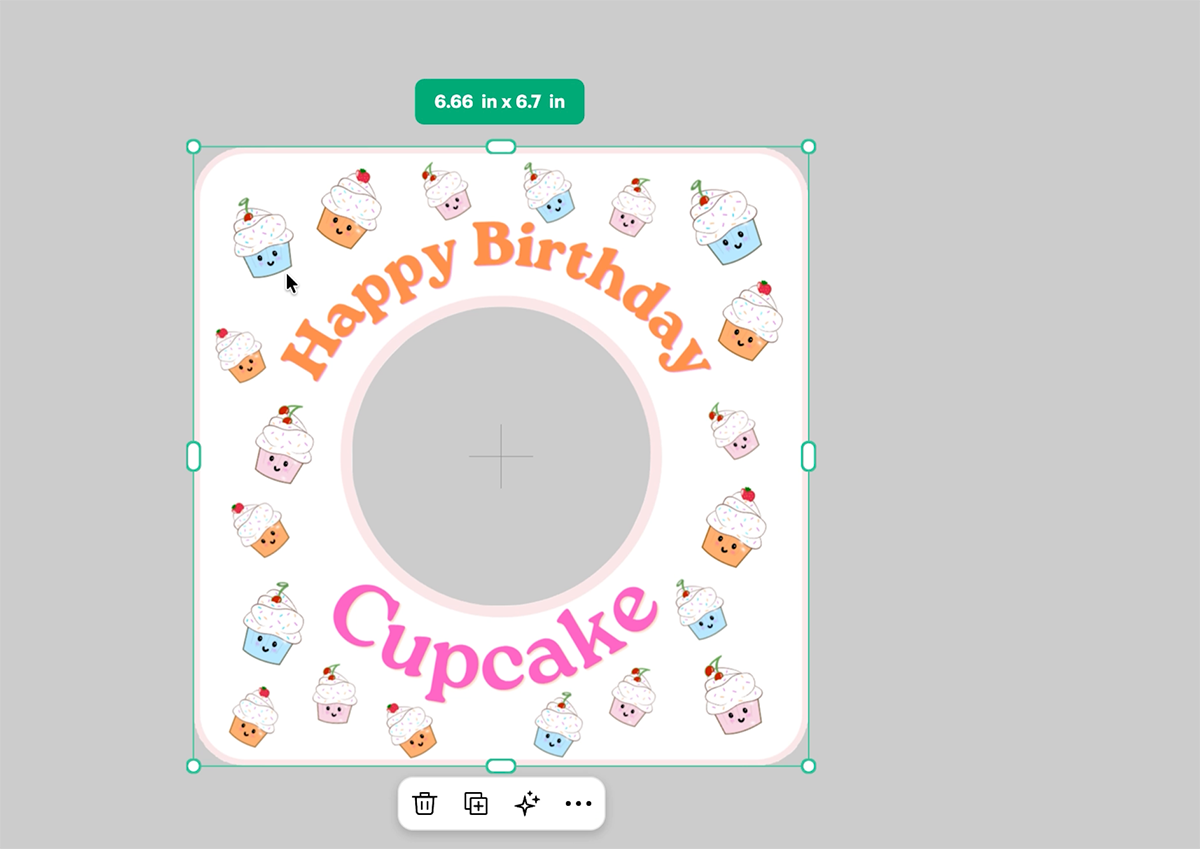
For this tutorial, the example file is a badge-style card made in Canva, sitting on a plain grey background. The circle in the middle isn’t a hole yet; it’s just a shape placed there so it can be turned into an actual cut-out hole later in Design Space.
At this stage, the background colour doesn’t matter. You don’t need to make it transparent before downloading, since you’ll remove it completely once it’s in Cricut Design Space. The important thing is to make sure your background and the centre circle you want to remove are a different colour to the outline edges of your card. You don’t want any colours on the outside that blend with the file; there has to be a contrast to help with removal.
To export your file from Canva:
- Click Share
- Click Download
- Save it as a JPEG or PNG
2: Upload Your File to Cricut Design Space
Next, open Cricut Design Space and upload your file:
- Click Upload in the bottom left corner
- Click Upload Image
- Select your file, then click Open
- Click Continue
This opens the image editing screen, where your file still shows its original background.

3: Remove the Background in Cricut Design Space
Now for the main step, removing the background in Cricut Design Space itself:
- Click anywhere on the background you want to remove
- Design Space clears that area, leaving it transparent
- If you remove too much by mistake, click Undo in the top left corner and it reverses instantly
For more detailed or fiddly designs, zoom in first. The more intricate the image, the more clicks it takes, but the method stays exactly the same.

4: Choose Single Layer or Flat Graphic
Once the background is removed, click Continue (or Upload). You’ll then be asked to choose:
- Single Layer
- Flat Graphic
Choose Flat Graphic for printable and single layer for cut files, then click Continue or Upload again. Your image will finish processing with a fully transparent background, ready to recolour and use in any project.
See the Step-by-Step Video
Why This Free Feature Matters for Beginners
So many beginners assume they need to pay for Cricut Access just to clean up an uploaded image, but that’s simply not the case. Removing a background in Cricut Design Space is free, available to everyone, and only takes a few extra clicks once you know where to look.
If you’re new to Cricut, it’s completely normal not to know this yet. Every crafter starts somewhere, and there’s no reason to feel behind just because a feature isn’t obvious at first glance.
Got another Cricut Design Space question you’ve been stuck on? Leave a comment and let me know, there’s a good chance the answer is simpler than you’d expect.
