
Today, we are sharing this oh-so-adorable Free Layered Year Of The Snake Mickey SVG to celebrate Chinese New Year. This is a huge event worldwide and starts on Wednesday, the 29th January 2025.
celebrateThe Chinese calendar is a complex calendar that rotates in a 60-year cycle. This is based on 12 earthly branches. Each represents an animal year and the five heavenly stems: earth, wood, fire, water and metal. This year, we celebrate the Year of the Snake, the 6th animal in the Chinese Zodiac Calendar.
Please note this is a personal use file only, it’s great for making your own Chinese New Year cards and decorations.

This post may contain affiliate links. Which means I may receive a small commission if you click a link and purchase something that I have recommended at no extra cost to yourself. As an amazon, Cricut and Glowforge associate, I earn from qualifying purchases
What You Will Find Here
What You Will Need For Our Free Layered Year Of The Snake Mickey SVG Files
- Cricut Maker,
- Weeding Tools
- Brayer
- Clitter Card Stock in Black, Rose Gold, Gold, White and Red.
- Cosmic Shimmer Acrylic Clear Drying Glue.

Making Your Layered Year Of The Snake Mickey SVG/PNG File On Cricut
Upload your Layered Year Of The Snake Mickey SVG files to Cricut Design Space; follow these instructions if you need help. Firstly, you will need to ensure all layers line up correctly; they should; however, if they don’t, select your layer and click on the padlock on the top bar to adjust.
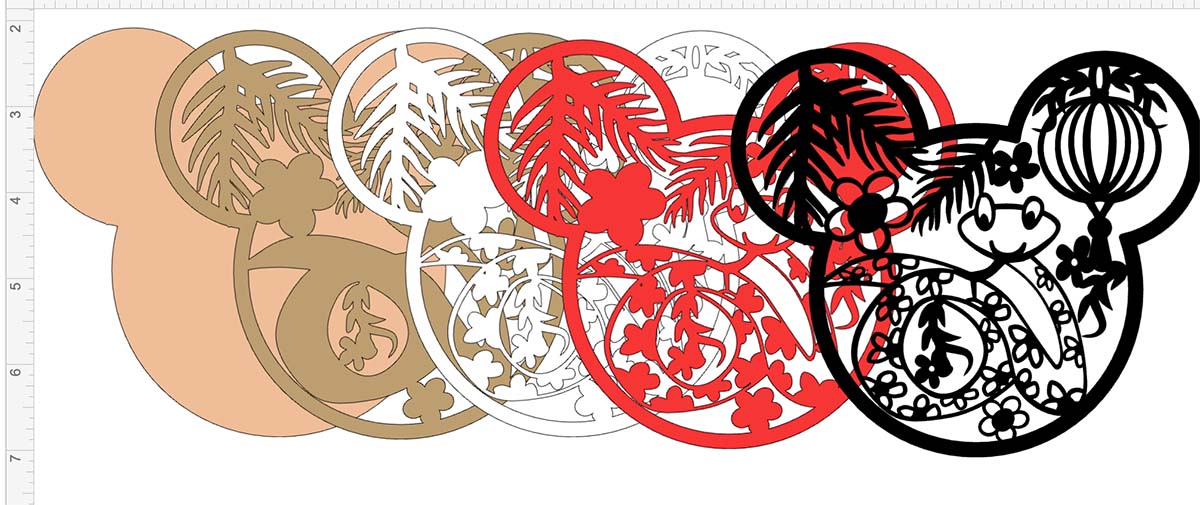
Once you are happy, colour all the layers of your Year Of The Snake Mickey SVG using the pictures on this page as a guide. The Colours I used are….
- Black Glitter
- Red Glitter
- White Glitter
- Gold Glitter
- Rose Gold Glitter
Cutting Your Year Of The Snake Mickey SVG file SVG On Cricut
When you send your Mickey SVG/PNG files to your Cricut to cut, ensure you use your brayer to roll the paper, vinyl or card to adhere to the mat. Note that movement will affect the cut.
How To Build Your Snake Mickey SVG Layered File
Firstly start by making sure they all line up and every Mickey layer is the correct way round, then flip all of the layers over.
Start by putting glue on the back of the gold layer and attaching it to the top rose gold layer. Now, add glue to the back of the white and attach it to the rose gold, then the red and attach it to the white layer, then the black layer to the top.
How To Get Your Free Year Of The Snake Mickey SVG/PNG Files
Click here or the image below to get your free downloadable Year Of The Snake Mickey SVG/png files from our member’s shop and follow these instructions to add to Cricut Design Space.

If You’re Having Problems?
Check out my trouble shooting page, hopefully it will answer any questions you may have.
Tips And Advice For Using Your Download For Cricut
- Cricut Design Space Guide
- How To Slice And Weld In Cricut Design Space
- How to upload to Cricut Design Space
- Using Iron On Vinyl
- Where Else To Get Free SVG Files
- Check Out What I Thought Of The xTool M1
Also please do pop over to Instagram, or Tik Tok and give me a follow and if you make a project tag me! I love seeing everyone else’s makes and chatting crafting. I could do that all day.


Thankyou so much for your svgs I can’t wait to get going now holidays are over got to get my machines out to cut the Chinese snake new year will post pic when I do it ,so thankyou yet again
Hi Lorraine thanks for the message you are so welcome