
If you’re an influencer, content creator, or marketer, you will realize how much sponsored content costs. It must be made visible.
High-quality, aesthetically pleasing visuals can completely change the perception of your brand in the eyes of your audience. They can establish credibility, make your message heard, and create a lasting impression.
One of the ways to achieve this is by using the CapCut Desktop video editor. It’s a user-friendly tool to work with, having so many features to assist you in making your content professional-looking.
While CapCut PC gives you lots of free tools, there are some of the more advanced features, like more effects or templates, that may cost you money.
But even if you do not use those, you can easily create good-looking videos with their free tools.
What You Will Find Here
Why Use CapCut Desktop to Fine-Tune Sponsored Content?
Build Brand Trust with Smooth Visuals
Smooth visuals create trust and brand reputation. If your video appears professional, your viewers will be more likely to watch your content.
CapCut Desktop video editor offers features like filters, color grading, and smooth transitions to provide a high-quality look to your videos.
Text-to-speech capabilities also improve voiceover clarity, making your content more accessible.
Keep Your Audience Engaged
Maintaining your audience’s interest is essential to effective content.CapCut PC allows you to add dynamic captions, motion graphics, and creative pacing to engage your audience.
It also has templates and overlays to personalize your video. It allows you to add animations and graphics to enrich your message.
Personalization for Each Brand
CapCut Desktop is completely customizable to match your brand identity. Fonts, colors, and logos can be changed.
And with voiceover tools, you can experiment with different voice effects for personalization.
Save Time Without Squeezing Quality
CapCut PC’s AI features accelerate the editing process, saving time without compromising on quality. The interface is simple, though some of the more advanced tools may be money for additional effects.
Steps to Give Sponsored Content a Professional Look
Step 1: Download CapCut Desktop Video Editor from the Official Website
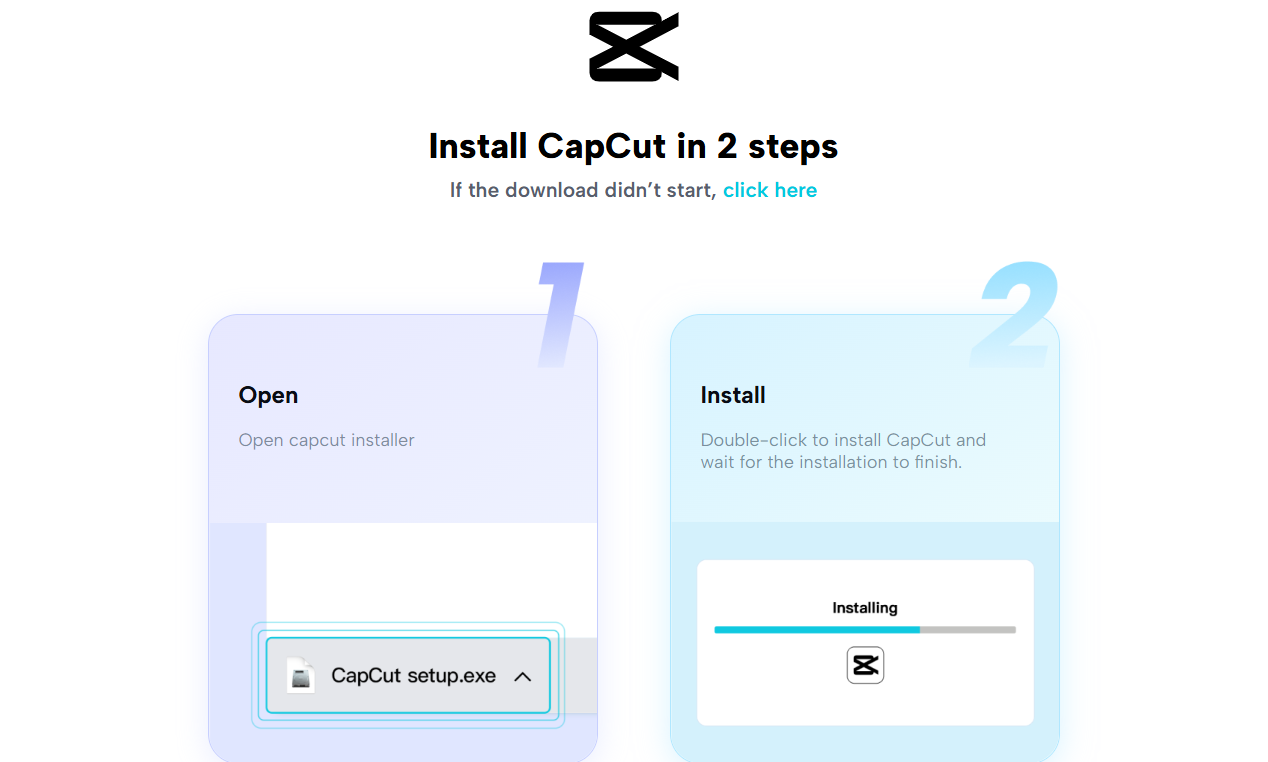
To begin with, visit the official CapCut PC website and download the software. It supports both Windows and Mac, so if you use either one, you’re lucky.
Make sure to download the software from the official website to avoid any issues with third-party downloads. When downloaded, install the CapCut desktop video editor according to the on-screen instructions on your computer.
The registration is free, and you can begin editing immediately. Some of the pro features, such as pro filters or motion tracking, however, might require in-app purchases, which are accessible with a subscription.
Step 2: Import Your Sponsored Video Content
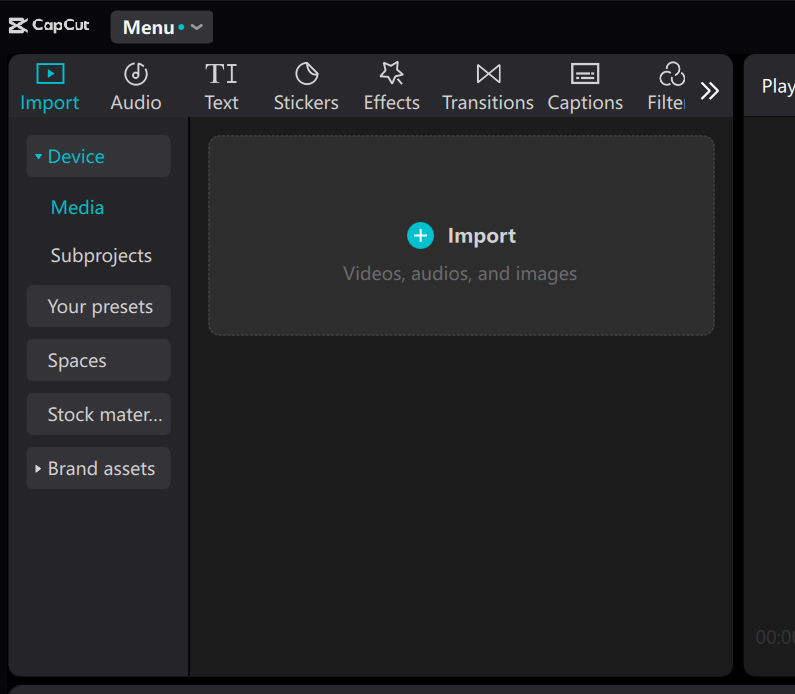
Begin by opening CapCut desktop video editor after you have installed it, and then import your sponsored video.
Simply drag your video file to the timeline or press the “Import” button to import it. As you set up your content, do not forget to upload any supporting files like logos, product pictures, and background music.
CapCut PC supports lots of formats, so you will not be scrambling to upload all sorts of media. When handling large files, make sure you have enough storage and processing to finish the task without a glitch.
Step 3: Apply Effects, Filters, and Add Text to Video
Now it’s time to make your video sleek. CapCut PC also offers a variety of in-built effects, including light leaks, transitions, and filters, to make your content look professional.
Insert text overlays with your brand’s logo, color, and font to draw attention. You can also add intros, outros, or call-to-action words to lead the audience.
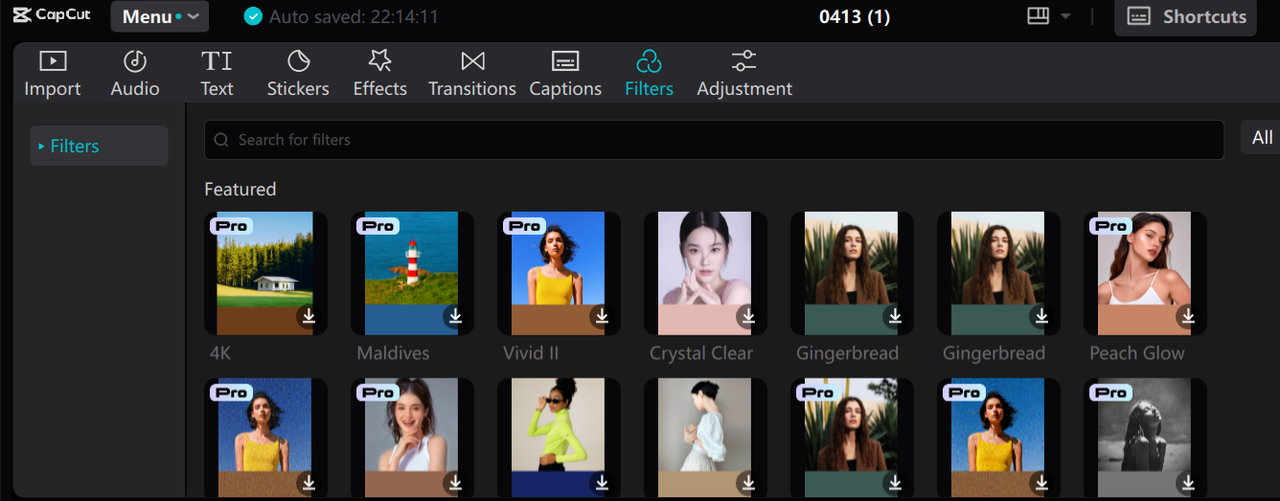
CapCut AI video generator also includes a color wheel option, which can help you add smart visuals that match your brand and content goals.
Visual brand consistency is important, so ensure that all that appears in your video is consistent with your brand’s look, from color to text, so your video looks seamless throughout.
Step 4: Take Advantage of Advanced Features (Optional Paid Software)
To make the look neater, try using some of the advanced features in CapCut Desktop. Motion tracking allows you to follow through on specific things in your video, and tighter keyframing gives you greater animation and transition control.
All of these tools can help you improve your sponsored content with that professional look. These options do come with a price, however, so if you’d like to get access to them, you’ll need to jump to a subscription.
But all the rest of the CapCut PC tools remain free and are still capable of making your video significantly better.
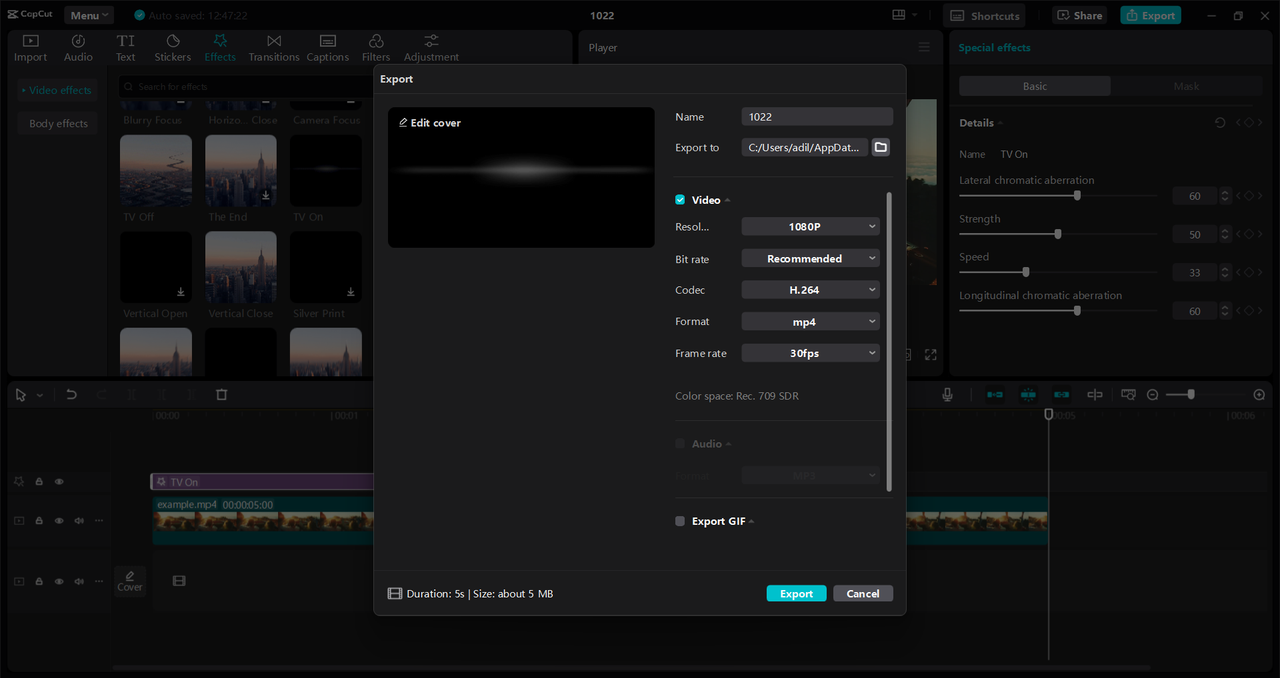
Step 5: Share in High Quality
Once you are content with your video, export it. Choose the resolution, bitrate, and format most suited for the site on which you’ll share your video, whether it be YouTube or Instagram.
For branded content, 1080p or 4K resolution is best to make your video appear crisp. CapCut Desktop allows you to export videos without watermarks, depending on your plan.
Once exported, you can either upload directly to social media platforms or save the file on your computer for later use.
Conclusion
CapCut desktop video editor makes it easy to create professional-looking, refined sponsored content even if you do not have advanced editing skills. With its user-friendly features and functionalities, you can simply make your videos more beautiful, stay on-brand, and connect with your audience.
CapCut PC is perfect for content creators who want to create powerful videos without spending too much time on complicated editing. Test it out for your next campaign and see how it can enhance your content.
If you need a higher level of polish, explore professional tools, like the voice changer, to create even more professional-looking additions to your videos.
Please note this is a collaboration.
